
WooCommerce v2 query loops and dynamic tags
Bricks 2.4 adds WooCommerce-specific query loops and dynamic tags for advanced modular Cart, Checkout, and My Account layouts.
Use them when you build with WooCommerce advanced modular elements, or when you need a custom cart-dependent layout such as a mini cart inside the Dynamic fragment element.
Query loops
Section titled “Query loops”Use these query loop types from the Query type control. wooCart is the existing Cart contents loop. The other query types are added for advanced modular layouts and only appear when advanced modular elements are enabled.
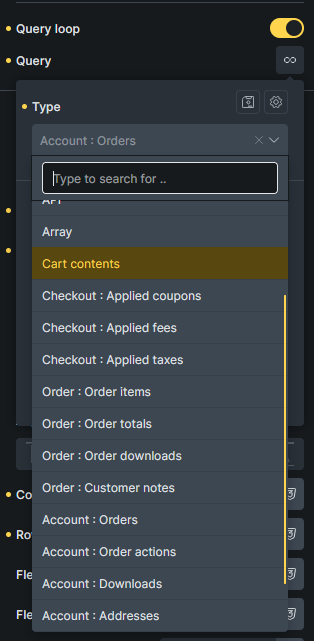
| Query type | Builder label | Use it for |
|---|---|---|
wooCart | Cart contents | Visible cart line items. Use for cart rows and custom mini cart item rows. |
wooCartCoupons | Checkout : Applied coupons | Applied cart coupons. |
wooCartFees | Checkout : Applied fees | Cart fees. |
wooCartTaxes | Checkout : Applied taxes | Cart tax rows. |
wooOrderItems | Order : Order items | Line items from the current order context. |
wooOrderTotals | Order : Order totals | Order total rows from the current order context. |
wooOrderDownloads | Order : Order downloads | Downloadable items from the current order context. |
wooOrderCustomerNotes | Order : Customer notes | Customer notes from the current order context. |
wooAccountOrders | Account : Orders | Customer orders in the Account orders state. |
wooAccountOrderActions | Account : Order actions | Available actions for the current order inside a wooAccountOrders loop. |
wooAccountDownloads | Account : Downloads | Downloads available to the current account. |
wooAccountAddresses | Account : Addresses | Billing and shipping address rows in the Account addresses state. |
Order loops use the current order context. That context exists in Checkout v2 pay, thank-you, and order receipt states, in Account v2 view-order states, and inside order-aware account loops.
Cart tags
Section titled “Cart tags”Use these tags inside the wooCart query loop:
{woo_cart_product_name}- Cart item product name, including WooCommerce cart item metadata.{woo_cart_product_title}- Product title without variation attributes or other cart item metadata. Add:plainto remove the product link.{woo_cart_item_price}- Formatted unit price. A discounted item includes the regular price and current price using WooCommerce sale-price markup. Add:valuefor the unformatted current unit price.{woo_cart_item_save}- Formatted product savings for the full line item quantity. Add:valuefor the unformatted savings amount or:percentagefor the numeric discount percentage without a percent symbol.{woo_cart_remove_link}- Remove link markup. Use{woo_cart_remove_link:url}when you only need the remove URL.{woo_cart_quantity}- Quantity input. Use{woo_cart_quantity:value}for the numeric quantity.{woo_cart_subtotal}- Cart line subtotal.
You can also use product tags inside the wooCart loop, such as {featured_image}, {woo_product_price}, {woo_product_sku}, and {woo_product_gtin}.
Use {woo_cart_product_title} when the product title and item details need separate elements or styling. The existing {woo_cart_product_name} remains available for layouts that rely on its combined output, including item metadata, backorder notices, and WooCommerce cart item hooks.
{woo_cart_item_price} uses the current cart item product or variation and follows the store’s cart tax display setting. {woo_cart_item_save} compares that unit price with the regular price, then multiplies the monetary savings by the cart item quantity.
Cart item data element
Section titled “Cart item data element”Add the Cart item data element inside a Cart contents query loop to render variation attributes and item data separately from the product title.
The element includes variation attributes even when their values appear in the variation name. It also includes compatible data added through WooCommerce’s woocommerce_get_item_data filter and preserves safe formatted display values supplied by extensions.
Use these controls to design the output:
- Show labels and Label suffix. The default suffix is
:. - Show separators and Separator. The default separator is
/. - Layout controls for direction, wrapping, alignment, justification, and row and column gaps.
- Item controls for direction, alignment, gap, padding, background, border, and box shadow.
- Label and Value controls for width, flex grow and shrink, spacing, background, border, box shadow, and typography.
- Separator typography and margin.
The element renders nothing on the frontend when used outside a Cart contents loop or when the current item has no item data.
Cart totals and checkout tags
Section titled “Cart totals and checkout tags”These tags can be used in cart, checkout, and cart-dependent fragments without being inside the wooCart loop:
{woo_cart_items_count}{woo_cart_order_subtotal}{woo_cart_order_total}{woo_cart_applied_coupon_total_amount}{woo_cart_applied_fee_total_amount}{woo_cart_shipping_method}{woo_cart_shipping_total_amount}{woo_free_shipping_min_amount}{woo_free_shipping_remaining}{woo_free_shipping_progress}{woo_checkout_current_step_number}{woo_url}
Some tags support :value to return a plain number instead of formatted WooCommerce HTML, such as {woo_cart_shipping_total_amount:value} and {woo_free_shipping_progress:value}.
Coupon, fee, and tax tags
Section titled “Coupon, fee, and tax tags”| Query loop | Tags |
|---|---|
wooCartCoupons | {woo_cart_applied_coupon}, {woo_cart_applied_coupon_amount} |
wooCartFees | {woo_cart_applied_fee}, {woo_cart_applied_fee_amount} |
wooCartTaxes | {woo_cart_applied_tax_label}, {woo_cart_applied_tax_amount} |
Use the total tags outside the loop when you only need a combined value:
{woo_cart_applied_coupon_total_amount}{woo_cart_applied_fee_total_amount}
WooCommerce URL tag
Section titled “WooCommerce URL tag”Use {woo_url} to output common WooCommerce page and endpoint URLs. Without a key, it returns the shop URL.
| Tag | Returns |
|---|---|
{woo_url} or {woo_url:shop} | Shop page URL |
{woo_url:cart} | Cart page URL |
{woo_url:checkout} | Checkout page URL |
{woo_url:account} or {woo_url:myaccount} | My Account page URL |
{woo_url:dashboard} | My Account dashboard endpoint URL |
{woo_url:orders} | My Account orders endpoint URL |
{woo_url:downloads} | My Account downloads endpoint URL |
{woo_url:addresses} or {woo_url:edit-address} | My Account edit-address endpoint URL |
{woo_url:edit-account} | My Account edit-account endpoint URL |
{woo_url:payment-methods} | My Account payment methods endpoint URL |
{woo_url:add-payment-method} | My Account add payment method endpoint URL |
{woo_url:lost-password} | My Account lost password endpoint URL |
{woo_url:order-withdrawal} | Order Withdrawal endpoint URL, when enabled |
{woo_url:customer-logout} | My Account logout endpoint URL |
{woo_url:terms} | WooCommerce terms and conditions page URL |
{woo_url:privacy} | WooCommerce privacy policy page URL |
Registered WooCommerce account endpoint query vars can also be resolved by key. This only returns a URL; it does not add custom Account v2 states.
Account tags
Section titled “Account tags”Use these tags in Account v2 states.
| Context | Tags |
|---|---|
| Account addresses state | {woo_account_addresses_description} |
wooAccountAddresses query loop | {woo_account_address_type}, {woo_account_address_title}, {woo_account_address}, {woo_account_address_has_address}, {woo_account_address_edit_url}, {woo_account_address_action_label} |
| Account edit-address state | {woo_account_edit_address_title}, {woo_account_edit_address_type}, {woo_account_edit_address_type_label} |
Order withdrawal tags
Section titled “Order withdrawal tags”These Bricks 2.4 tags require advanced modular elements and WooCommerce 11.1 or later with Order Withdrawal enabled. Use them inside the Account Page v2 Order withdrawal state.
| Tag | Output |
|---|---|
{woo_order_withdrawal_screen} | Current screen: form, review, or confirmation. Empty in the builder. |
{woo_order_withdrawal_value:first_name} | Submitted first name. |
{woo_order_withdrawal_value:last_name} | Submitted last name. |
{woo_order_withdrawal_value:email} | Submitted email address. |
{woo_order_withdrawal_value:email_confirmation} | Submitted email confirmation. |
{woo_order_withdrawal_value:order_number} | Submitted order number. |
{woo_order_withdrawal_value:withdrawal_type} | Submitted withdrawal type key, such as full_order or specific_items_only. |
{woo_order_withdrawal_value:withdrawal_type_label} | Withdrawal type label, such as Entire order or Specific items only. |
{woo_order_withdrawal_value:additional_details} | Submitted additional details, with line breaks preserved in text output. Displays None provided when empty. |
The value tags display sample data in the builder and submitted form values on the frontend. They do not retrieve data from a matching WooCommerce order or create an order context for order tags and query loops. Outside the withdrawal state’s frontend rendering, these tags return no value.
Order tags
Section titled “Order tags”Use these tags in Checkout v2 order states, Account v2 order states, or order-aware query loops.
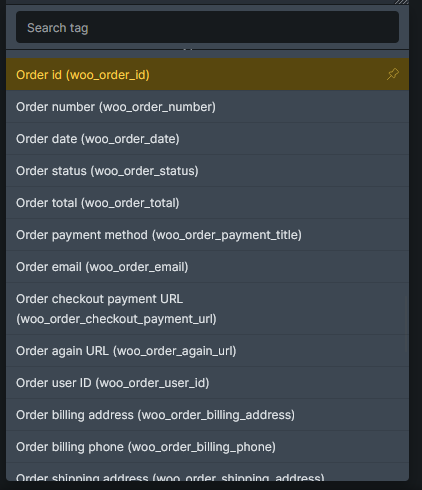
General order tags:
{woo_order_id}{woo_order_number}{woo_order_date}{woo_order_status}{woo_order_failed_text}- Failed-order message. See Failed-order text for filtering and preview behavior.{woo_order_total}{woo_order_payment_title}{woo_order_email}{woo_order_checkout_payment_url}{woo_order_again_url}{woo_order_user_id}{woo_order_billing_address}{woo_order_billing_phone}{woo_order_shipping_address}{woo_order_shipping_phone}{woo_order_view_url}{woo_order_view_aria_label}{woo_order_item_count}{woo_order_total_with_item_count}
Use these inside wooOrderItems:
{woo_order_item_name}{woo_order_item_title}- Product title without variation metadata. Add:plainto remove the product link.{woo_order_item_quantity}{woo_order_item_price}{woo_order_item_line_subtotal}{woo_order_item_meta}
Use {woo_order_item_title} with the Order item data element when the title and persisted order metadata need separate styling. If the original product has been deleted, the title tag falls back to the item name stored with the order.
Add the Order item data element inside an Order : Order items query loop. It renders persisted variation and other formatted order item metadata in Checkout v2 Pay, Thank you, and Order receipt states, the Account v2 View order state, and an Order items loop nested inside Account : Orders.
The Cart item data and Order item data elements have the same controls, but they use different data sources. Cart item data comes from the active cart. Order item data comes from the saved order item and runs WooCommerce’s formatted metadata filters.
For custom CSS, the elements use separate class prefixes:
| Output | Cart item data | Order item data |
|---|---|---|
| Root | .brx-cart-item-data | .brx-order-item-data |
| Item | .brx-cart-item-data__item | .brx-order-item-data__item |
| Label | .brx-cart-item-data__label | .brx-order-item-data__label |
| Value | .brx-cart-item-data__value | .brx-order-item-data__value |
| Separator | .brx-cart-item-data__separator | .brx-order-item-data__separator |
Each item also receives a metadata-key modifier class, such as .brx-cart-item-data__item--color, and a matching data-key attribute.
Use these inside wooOrderTotals:
{woo_order_total_label}{woo_order_total_value}
Use these inside wooAccountOrderActions, usually inside a wooAccountOrders loop:
{woo_order_action_url}{woo_order_action_name}{woo_order_action_aria_label}
Use these inside wooOrderDownloads or wooAccountDownloads:
{woo_order_download_product}{woo_order_download_name}{woo_order_download_url}{woo_order_downloads_remaining}{woo_order_download_access_expires}
Use these inside wooOrderCustomerNotes:
{woo_order_customer_note_date}{woo_order_customer_note_comment}
Failed-order text
Section titled “Failed-order text”Use {woo_order_failed_text} for the payment failure message in a Checkout v2 Thank you state. On the frontend, it returns a message only for a current order with the Failed status. It returns no value for other statuses or when no order is available.
The message uses WooCommerce’s woocommerce_thankyou_order_failed_text filter, which receives the message and current WC_Order. Bricks sanitizes HTML with wp_kses_post() and restores the default localized message for non-string filter results.
In the builder, a failed preview order shows the filtered message. Without a failed preview order, Bricks shows the default message without calling the filter.
See Failed-order messages to update a saved Checkout v2 layout.
Conditions
Section titled “Conditions”Bricks 2.4 adds WooCommerce conditions for checkout and order-aware layouts:
- Checkout : Login step needed
- Checkout : Needs shipping
- Checkout : Needs shipping address
- Checkout : Order has status
- Order : Needs shipping address
- Order : Has downloads
Use them to show or hide content inside checkout steps, thank-you/order receipt layouts, view-order screens, and other checkout or order-aware sections.
Checkout : Login step needed returns Yes only for logged-out customers when Enable log-in during checkout is enabled in WooCommerce. The generated Checkout v2 multistep checkout uses this condition to hide its Account Login step and related navigation when that step is not available.
Use Checkout : Needs shipping for shipping methods and for a complete Shipping step. It returns Yes when the non-empty cart contains products that require shipping. In a multistep checkout, apply it to both the Shipping step and the matching navigation item.
Use Checkout : Needs shipping address for the Ship to another address control and the shipping-address fields. When WooCommerce is set to force shipping to the billing address, this condition returns No even if the cart still needs shipping.
See Element Conditions for condition setup and comparison behavior.
Use Order withdrawal screen with Your details, Review, or Confirmation to show the matching section inside the Account Page v2 withdrawal state. It requires advanced modular elements and WooCommerce Order Withdrawal to be enabled. All three sections remain visible in the builder.
Interactions
Section titled “Interactions”Bricks 2.4 adds these WooCommerce interaction triggers:
- Bricks cart contents changed - Runs after a confirmed AJAX item addition, removal, or quantity change and the related UI updates finish. It does not run for initial synchronization, unchanged quantities, failed updates, or coupon, address, shipping, and totals-only recalculations.
- Bricks dynamic fragments refreshed - Runs after Dynamic fragment content has been refreshed.
- Bricks checkout step changed - Runs after a Checkout v2 step changes.
Bricks cart contents changed is available whenever WooCommerce is active, including pages without Dynamic fragments. The other two triggers require advanced modular elements. For a custom cart confirmation popup, use Bricks cart contents changed. A fragment refresh alone does not confirm that cart items changed.
The Checkout step interaction action can move a multistep checkout to the next step, previous step, a specific step, or a specific checkout field. It can also scroll the target step or field into view.
See Checkout v2 multistep checkout for the full multistep workflow.
JavaScript events
Section titled “JavaScript events”Developers can listen for the same frontend events:
document.body.addEventListener(  "bricks/woocommerce/cart-contents-changed",  (event) => {    console.log(event.detail.requestId, event.detail.sourceEvent);  },);
document.body.addEventListener(  "bricks/woocommerce/fragments/refreshed",  (event) => {    console.log(event.detail.fragments);  },);
document.body.addEventListener(  "bricks/woocommerce/checkout-step-changed",  (event) => {    console.log(event.detail.stepId);  },);
For bricks/woocommerce/cart-contents-changed, requestId identifies the confirmed request. sourceEvent contains the AJAX endpoint name, such as bricks_update_cart_item_quantity, or update_cart for a cart-page request. The event does not include cart item data.
Coupon failure events
Section titled “Coupon failure events”Bricks’ custom coupon handlers emit these WooCommerce events when the response contains an error notice. Listen with jQuery(document.body).on():
| Event | Bricks handler | Additional arguments |
|---|---|---|
errored_coupon | Cart Coupon with Update cart via AJAX enabled | Coupon code, raw returned notice HTML |
errored_coupon_in_checkout | Checkout Coupon | Coupon code, raw returned notice HTML |
The existing applied_coupon and applied_coupon_in_checkout events also fire for error responses. They do not confirm that a coupon was accepted.
Was this helpful?
A quick vote and short notes help us improve these docs faster.
Leave a note for us
Please do not include passwords, license keys, or personal data. We store submitted notes to improve the docs.
Thanks for sharing feedback. We're using it to improve these docs.