
User activation
Starting with Bricks 2.1, you can enable User activation for WordPress registrations. Once enabled, newly registered users receive an activation email and must click the activation link before they can log in.
Quick overview
Section titled “Quick overview”Here is a step-by-step overview of how this feature works once it’s enabled.
- A new user account is created.
- Bricks stores a generated activation key and marks the user as pending.
- Bricks sends the activation email to the new user’s email address.
- The activation link points to the configured Verification success page with
user_idandactivation_keyquery parameters. - When the user opens that valid link, Bricks deletes the activation key and marks the user as active.
- If Auto login after activation is enabled, Bricks logs the user in after successful activation.
- If the activation link is invalid, Bricks redirects the user to the configured Verification failure page.
- Pending users cannot log in. Bricks returns an inactive-account login error.
Users created before User activation was enabled do not have activation status meta. Bricks treats them as active.
Configuration and controls
Section titled “Configuration and controls”Inside the WordPress dashboard, go to Bricks > Settings > General and scroll to User activation.
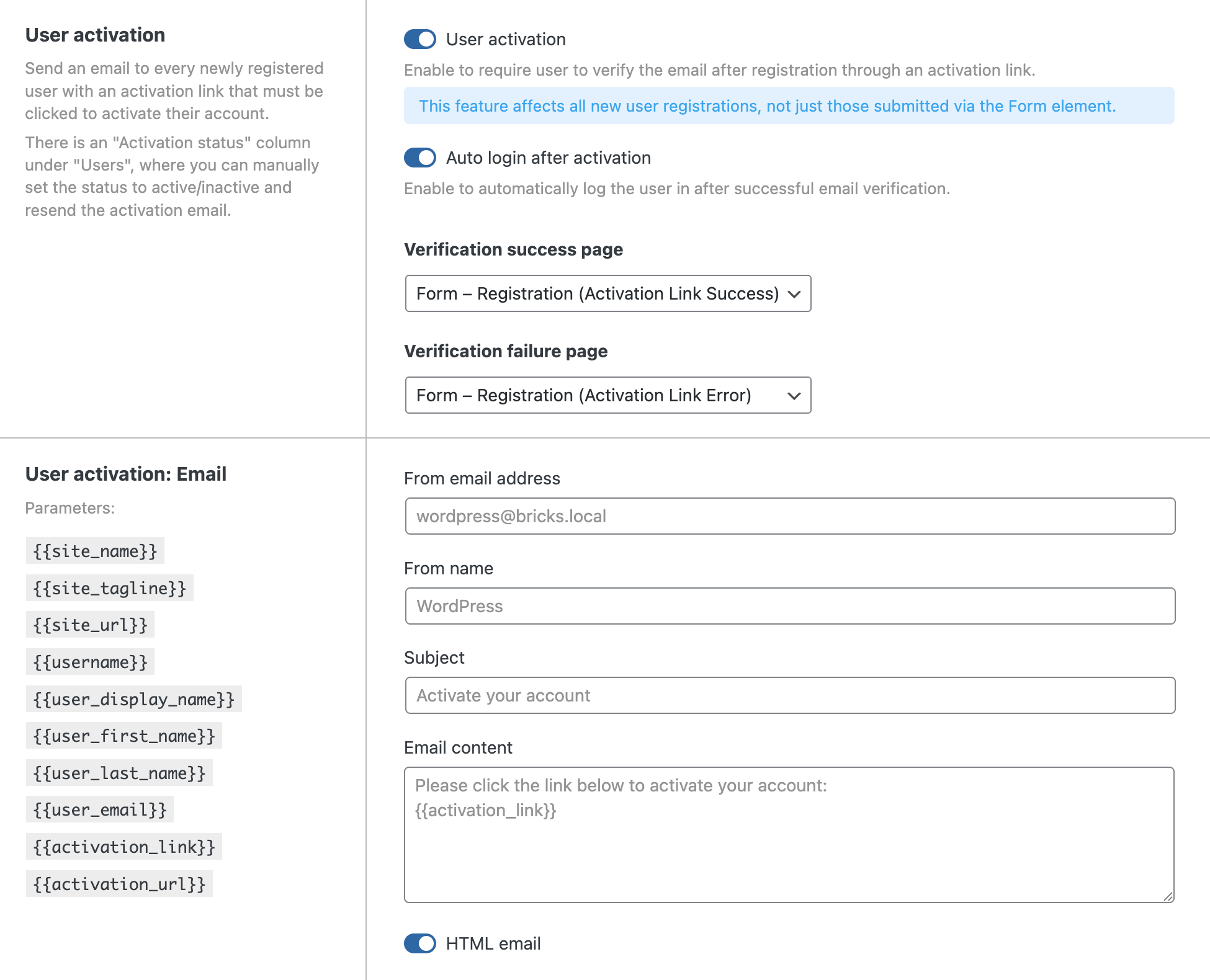
User activation: Enable this to require new users to verify their email after registration. After enabling it, the rest of the settings become available.
Auto login after activation: Automatically logs the user in after successful email verification.
Verification success page: The page used for successful activation links. Bricks expects the activation link to point to this page. If the user opens this page without user_id and activation_key, Bricks simply renders the page normally.
Verification failure page: The page users are redirected to when activation fails because the user ID or activation key is missing or invalid.
User activation: Email:
- From email address: Optional sender email. If empty, WordPress’ normal
wp_mail_fromvalue is used. - From name: Optional sender name. If empty, WordPress’ normal
wp_mail_from_namevalue is used. - Subject: Email subject. If empty, Bricks uses “Activate your account”.
- Email content: Email body. If empty, Bricks sends a default activation message.
- HTML email: Sends the email as HTML. If enabled and the content is not a full HTML document, Bricks converts line breaks with
nl2br().
Available email placeholders:
| Placeholder | Output |
|---|---|
{{site_name}} | Site name |
{{site_tagline}} | Site tagline |
{{site_url}} | Site URL |
{{username}} | User login |
{{user_display_name}} | User display name |
{{user_first_name}} | User first name |
{{user_last_name}} | User last name |
{{user_email}} | User email |
{{activation_link}} | Activation URL, or an HTML link when HTML email is enabled |
{{activation_url}} | Plain activation URL |
Registration behavior
Section titled “Registration behavior”User activation hooks into WordPress’ user_register flow while the feature is enabled. This means it affects:
- Users registered through the Bricks Form element.
- Users registered through other WordPress registration flows that trigger
user_register.
For Bricks Form element registrations:
- The registration action still validates username, email, password, password length, and role.
- Administrator and Super Admin roles are blocked as registration targets for security.
- If the username is not mapped, Bricks can generate it from the email address.
- If the password is not mapped or submitted, Bricks can generate one.
- Auto-login after registration is skipped while User activation is enabled.
If Send WordPress notification is enabled in the registration form action, Bricks triggers WordPress’ register_new_user action after creating the user. The activation email is still sent by the User activation feature.
Activation link behavior
Section titled “Activation link behavior”The activation URL is built from your configured Verification success page plus two query parameters:
?user_id=123&activation_key=generated_keyWhen the request reaches the success page, Bricks checks those parameters:
- Missing
user_idoractivation_key: the success page renders normally. - Empty
user_idoractivation_key: the user is redirected to the failure page. - Invalid activation key: the user is redirected to the failure page.
- Valid activation key: the account is marked active and the activation key is deleted.
- Already active user: Bricks skips activation and renders the success page normally.
Both the success page and failure page should be published pages.
Users page
Section titled “Users page”A new Activation status column appears on the WordPress Users page.
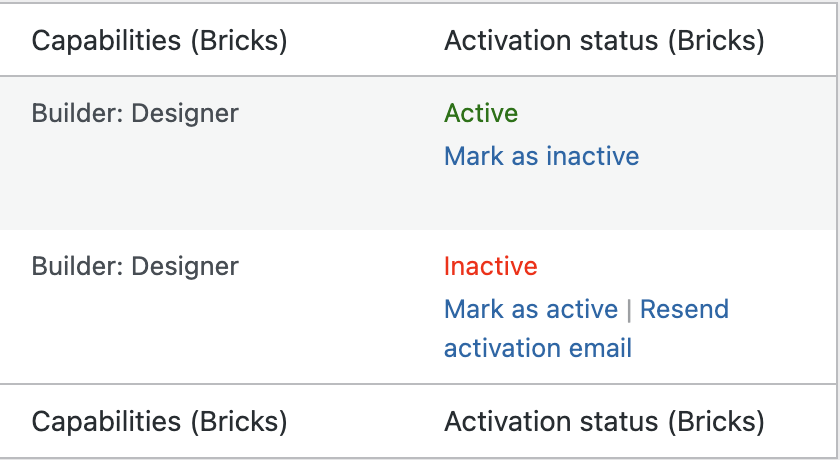
Possible statuses:
- Active: user can log in normally.
- Inactive: user has pending activation status and cannot log in until activated.
For each user, you can perform different actions based on their activation status by hovering over the user entry:
For an active user, Mark as inactive prevents the user from logging in.
For an inactive user, Resend activation email sends a new activation link using the current email template, and Mark as active manually marks the user as active without email verification.
Only users with the WordPress edit_users capability can change activation status or resend activation emails from the Users screen.
Login behavior
Section titled “Login behavior”When a pending user tries to log in, Bricks blocks authentication and shows an inactive-account error. Users with active status, and users with no activation status from before the feature was enabled, can log in normally.
If you also use Custom Authentication Pages, the same activation check applies to the Bricks User login form action because it uses WordPress authentication.
Email customization filters
Section titled “Email customization filters”The email settings can also be adjusted programmatically:
bricks/user_activation_email/from_namebricks/user_activation_email/subjectbricks/user_activation_email/content
These filters are useful for multilingual sites or projects that need different email text per user or context.
Was this helpful?
A quick vote and short notes help us improve these docs faster.
Leave a note for us
Please do not include passwords, license keys, or personal data. We store submitted notes to improve the docs.
Thanks for sharing feedback. We're using it to improve these docs.