
Maintenance Mode
Bricks 1.9.4 introduces the Maintenance Mode feature. A straightforward way to manage your site’s availability during updates or construction.
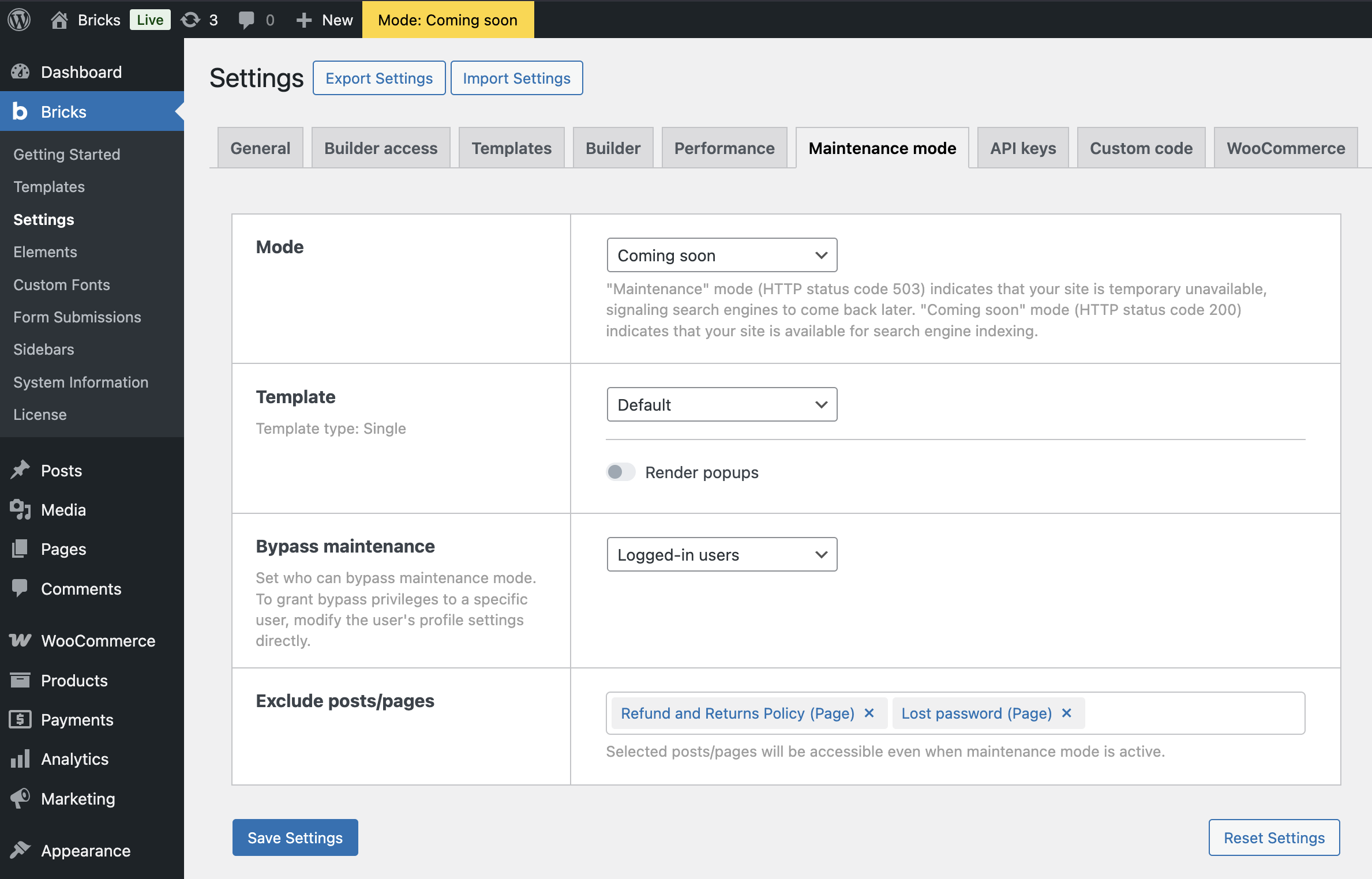
Maintenance Mode runs on the frontend only. It does not replace the WordPress admin, and it does not block the Bricks builder.
How to enable Maintenance Mode
Section titled “How to enable Maintenance Mode”- Log in to the WordPress dashboard.
- Navigate to Bricks > Settings > Maintenance.
Here, you’ll find several settings to configure:
- Mode selection: Choose
Disabled,Maintenance, orComing Soon. “Maintenance” mode (HTTP status code 503) indicates that your site is temporarily unavailable, signaling search engines to come back later. “Coming soon” mode (HTTP status code 200) indicates that your site is available for search engine indexing. - Template (optional): Assign a custom single template for your maintenance or coming soon mode.
- Render header (optional): Enable this setting if you want the active Bricks header to render with the maintenance or coming soon template. This is disabled by default.
- Render footer (optional): Enable this setting if you want the active Bricks footer to render with the maintenance or coming soon template. This is disabled by default.
- Render popups (optional): Enable this setting if you want Bricks popups to be rendered on the maintenance or coming soon template. This is disabled by default.
- Bypass maintenance: Customize access settings for different user roles.
- Exclude posts/pages (since 2.0): Select specific pages or posts where Maintenance Mode should not be applied.
If no template is selected, or the selected template is not published or has no Bricks data, Bricks renders a simple default page with a Maintenance or Coming soon heading.
When maintenance mode applies
Section titled “When maintenance mode applies”Maintenance mode is skipped for:
- WordPress admin requests.
- Bricks builder requests.
- The Bricks custom login page, if one is configured.
- Logged-in users who can bypass maintenance.
- Posts or pages selected under Exclude posts/pages.
If none of those bypasses apply, Bricks serves the maintenance response. In Maintenance mode, Bricks sends HTTP status 503. In Coming soon mode, Bricks sends HTTP status 200.
When maintenance mode is active, Bricks also removes the canonical tag and does not output Bricks Open Graph meta tags for the maintenance response.
Custom maintenance templates
Section titled “Custom maintenance templates”The selected maintenance template replaces the requested page content while maintenance mode is applied. The normal search, archive, and error templates are disabled for that response.
Header and footer rendering are off by default and must be enabled with Render header and Render footer. Popups are also off by default and only load when Render popups is enabled, or when the current user can bypass maintenance.
For multilingual sites, Bricks resolves the selected maintenance template through WPML or Polylang when those integrations are active.
Configuring role-based access
Section titled “Configuring role-based access”In the “Bypass maintenance” setting:
- Select from the dropdown menu:
Logged-in usersallows all logged-in users to bypass maintenance mode;Logged-in users with roleprovides a more granular control. - If
Logged-in users with roleis selected, checkboxes will appear to enable or disable maintenance mode bypass for specific roles such as Editor, Author, Contributor, etc.
Administrators can bypass maintenance by default. If no custom role selection is enabled, logged-in users can bypass maintenance mode.
Individual user access settings
Section titled “Individual user access settings”To configure access on an individual user level:
- From the WordPress dashboard, go to “Users”.
- Click to edit a specific user’s profile.
- In the user profile, find and adjust the “Bypass Maintenance” setting.
The individual user setting can explicitly enable or disable maintenance bypass for that user. This takes precedence over the role-based setting and over the default administrator/logged-in behavior.
Filters:
Was this helpful?
A quick vote and short notes help us improve these docs faster.
Leave a note for us
Please do not include passwords, license keys, or personal data. We store submitted notes to improve the docs.
Thanks for sharing feedback. We're using it to improve these docs.