
Remote Templates
Remote Templates let you browse and insert templates from another Bricks installation without exporting and importing files manually.
The workflow has two sides:
- The source site exposes selected templates through its remote library.
- The destination site adds that site under Remote libraries and accesses its templates from the Builder Browser.
1. Expose Templates on the Source Site
Section titled “1. Expose Templates on the Source Site”On the site that contains the templates:
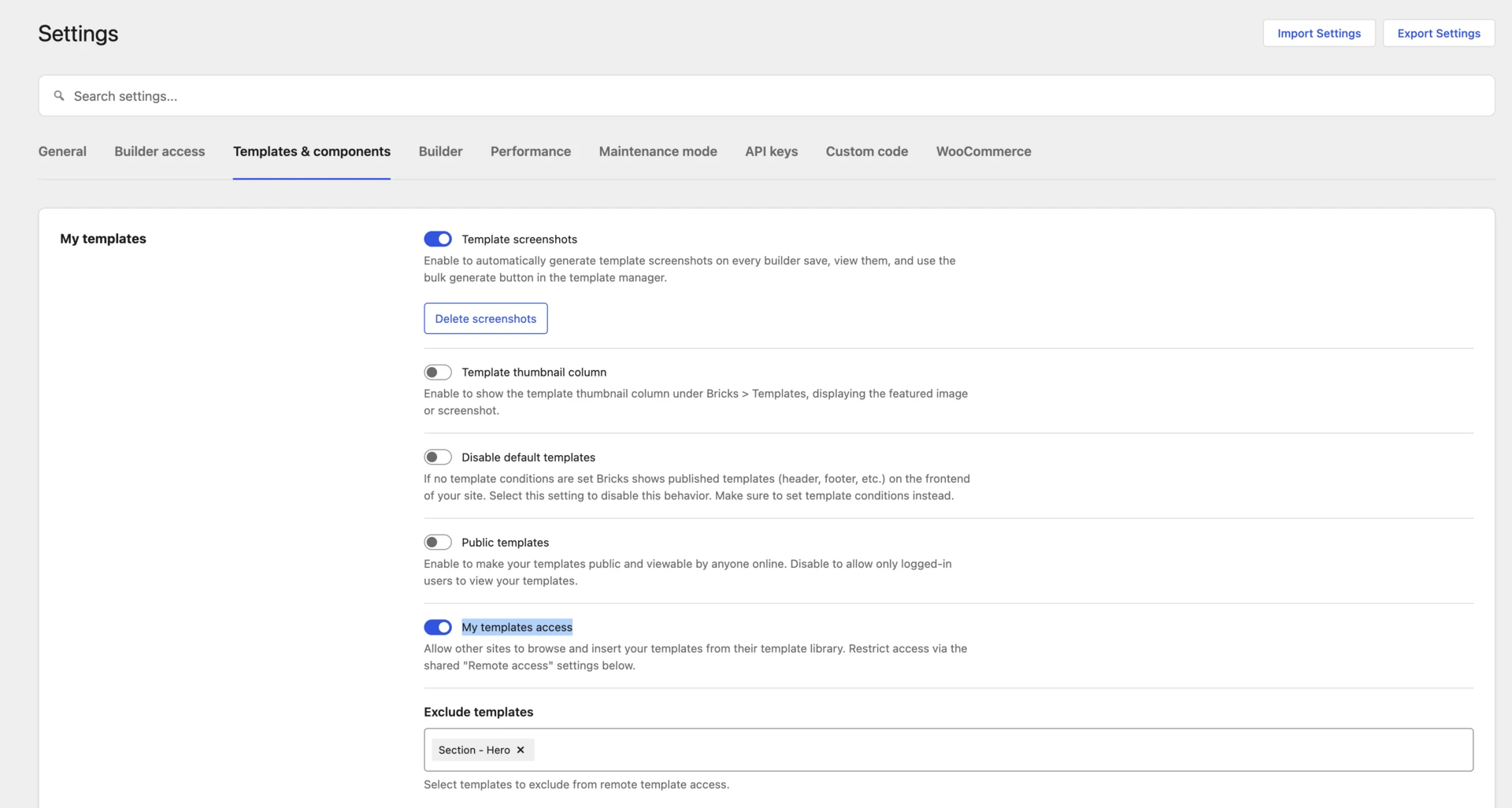
- Go to Bricks > Settings > Templates & components.
- Under My templates, enable My templates access.
- Use Exclude templates to hide any templates that should not be shared.
- Configure the shared Remote access controls.
- Save the settings.
The Remote access settings apply to remote templates and remote components:
- Whitelist URLs restricts access to the listed destination sites. Enter one URL per line.
- Password protection requires destination sites to provide the same password.
If both fields are empty, any Bricks site that knows the source URL can request the templates exposed by My templates access.
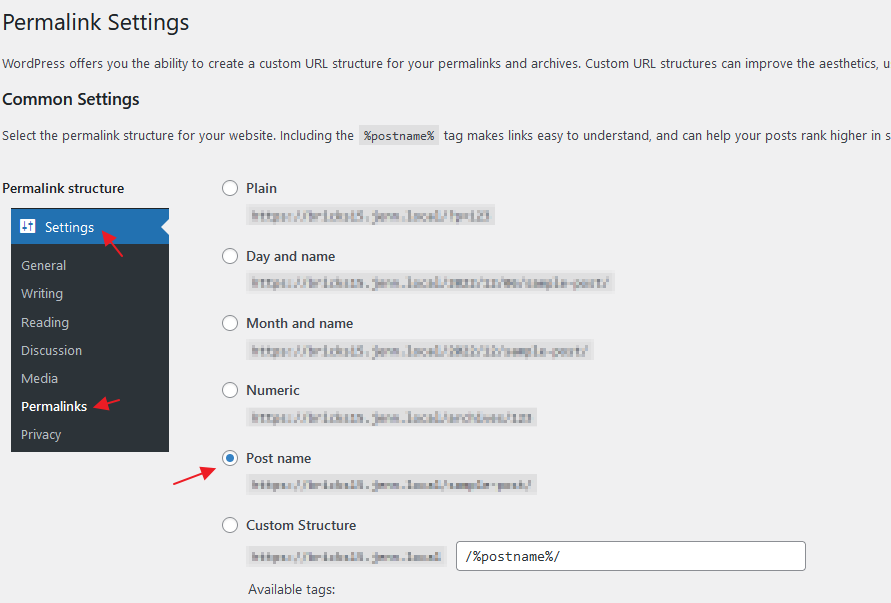
The source site’s WordPress permalink structure must not be set to Plain.
2. Add a Remote Site on the Destination Site
Section titled “2. Add a Remote Site on the Destination Site”On the site where you want to use the templates:
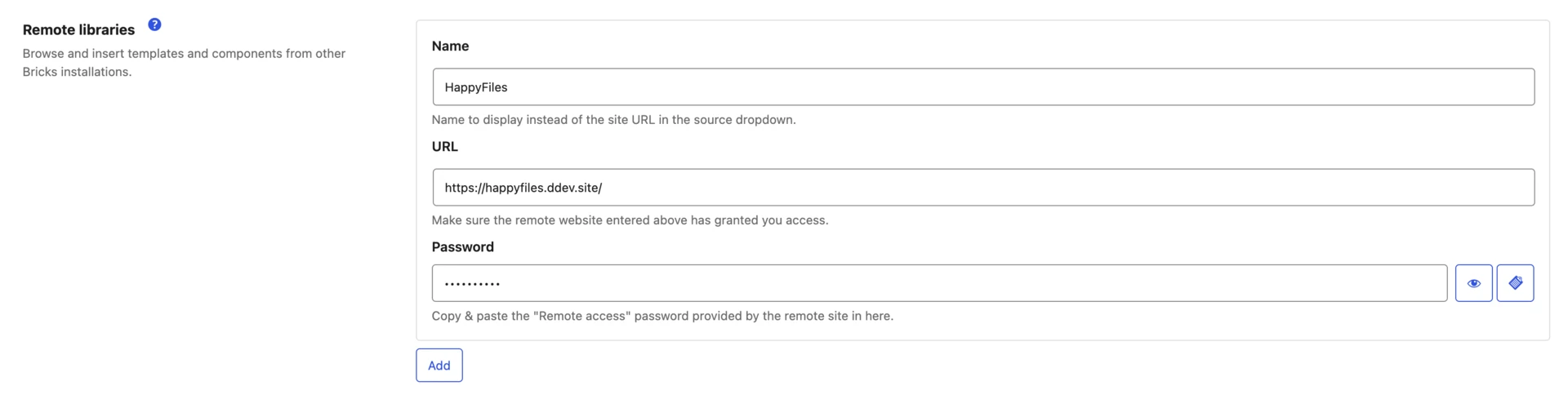
- Go to Bricks > Settings > Templates & components.
- Under Remote libraries, click Add.
- Enter the source site’s full URL.
- Optionally enter a Name. Bricks shows this instead of the URL in source dropdowns.
- Enter the source site’s Remote access password, if it uses one.
- Save the settings.
You can add multiple remote sites. The same entry can provide templates, components, or both.
3. Browse Remote Templates
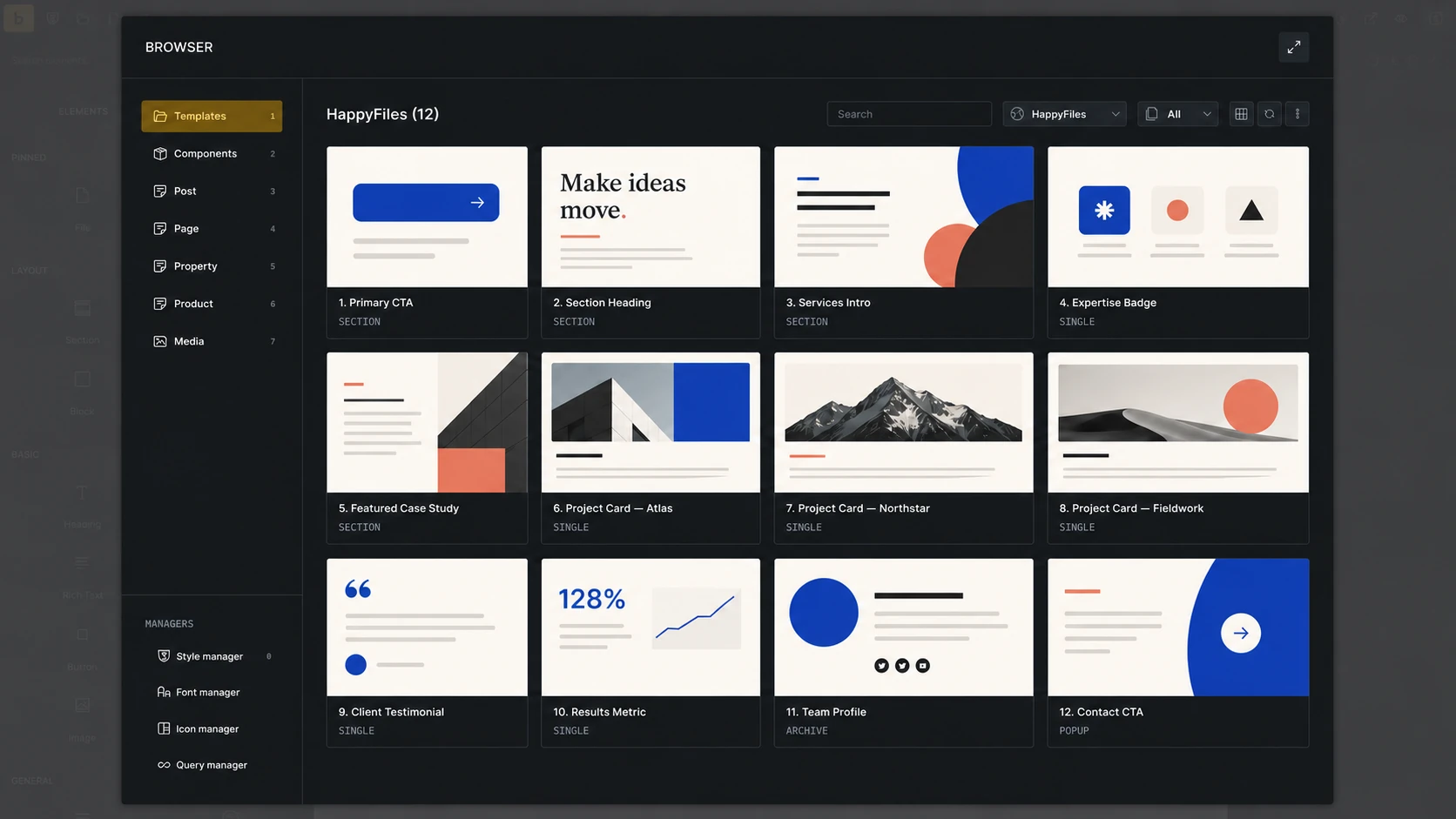
Section titled “3. Browse Remote Templates”Open the builder, click the folder icon, and select Templates in the Builder Browser.
Choose the remote site under Source. You can search the library, filter its templates, switch between grid and list view, and use Reload to request the source again.
The current user needs Access remote templates permission to see configured remote sites.
Insert a Remote Template
Section titled “Insert a Remote Template”Click Insert to add the template to the current canvas. The Replace content control decides whether Bricks replaces the current canvas or adds the template to it.
Use Import images to download eligible template and component images to the destination Media Library. Leave it disabled to use placeholder images where the normal template import flow supports them.
When the remote template includes related design-system data, Bricks may open additional reviews for theme styles, color palettes, variables, global classes, or Style Manager settings.
Remote code signatures are not trusted. Bricks removes source signatures, and users without code-execution permission do not receive executable Code, SVG, or custom-query settings from the remote template.
Templates That Use Components
Section titled “Templates That Use Components”In Bricks 2.4 and later, inserting a remote template also requests the components used by that template. The dependency package includes nested components and their referenced global classes, variable categories and variables, and color palettes.
Bricks remaps the template to the imported local component and design-system IDs before inserting it. Save pending component, class, variable, and color changes before starting the insert.
If a component from this source was imported before and changed remotely, Bricks asks whether to replace the local component before inserting the template. Replacing it updates the existing local component definition and its instances.
If the template depends on a component excluded from remote access on the source site, Bricks blocks the dependency package instead of inserting an incomplete component graph.
Import to Templates
Section titled “Import to Templates”Click Import to templates on a non-local template to save it into My Templates instead of inserting it directly onto the current canvas.
For a configured Bricks remote site, Bricks first localizes supported component and design-system dependencies, then passes the template through the regular template import flow. The current user needs Import/export templates permission.
Compatibility With Older Remote Sites
Section titled “Compatibility With Older Remote Sites”Bricks 2.4 introduces a versioned remote-library package for templates with component dependencies.
When a configured source does not support that package protocol, Bricks falls back to the legacy Remote Templates response. The template can still use the older insertion workflow, but the legacy response does not provide the dependency-complete component package. Update the source site before sharing templates that use components.
Permissions
Section titled “Permissions”Remote template operations use separate builder permissions:
| Task | Required permissions |
|---|---|
| See configured remote sites | Access remote templates |
| Insert a remote template without component dependencies | Access remote templates and Insert templates |
| Save a remote template under My Templates | Access remote templates and Import/export templates |
| Insert a remote template with component dependencies | The insert permissions above, plus Access remote components, Import/export components, and Insert components |
| Import a remote template with component dependencies to My Templates | The template import permissions above, plus Access remote components and Import/export components |
See Builder Access & Capabilities for assigning these permissions.
Fetching and Caching
Section titled “Fetching and Caching”Bricks keeps fetched template data outside the WordPress database. Remote template data can be cached in the builder browser for up to seven days per source. Use Reload when you need the source again before that cache expires.
Remote-library capability checks and component catalogs use shorter server-side caches. In the Component Manager, Refresh bypasses those short caches and requests the source again.
Troubleshooting
Section titled “Troubleshooting”A Remote Site Does Not Appear
Section titled “A Remote Site Does Not Appear”- Confirm the remote library row is saved under Templates & components.
- Confirm the current user has Access remote templates permission.
A Remote Site Appears but Does Not Load
Section titled “A Remote Site Appears but Does Not Load”Check the source site:
- My templates access is enabled.
- Permalinks are not set to Plain.
- The destination site’s URL is included under Whitelist URLs, when used.
- The password saved on the destination matches Remote access > Password protection.
- The expected templates are not selected under Exclude templates.
A Template With Components Cannot Be Inserted
Section titled “A Template With Components Cannot Be Inserted”- Save pending component, class, variable, and color changes on the destination.
- Confirm the user has the required component permissions.
- Confirm every component dependency is available and not excluded on the source.
- Update the source to Bricks 2.4 or later if it only supports the legacy template response.
For the template library controls and local template actions, see Template Library.
Was this helpful?
A quick vote and short notes help us improve these docs faster.
Leave a note for us
Please do not include passwords, license keys, or personal data. We store submitted notes to improve the docs.
Thanks for sharing feedback. We're using it to improve these docs.