
Custom Code
Bricks allows you to add custom code (CSS, JavaScript, HTML, and PHP) to different parts of your website.
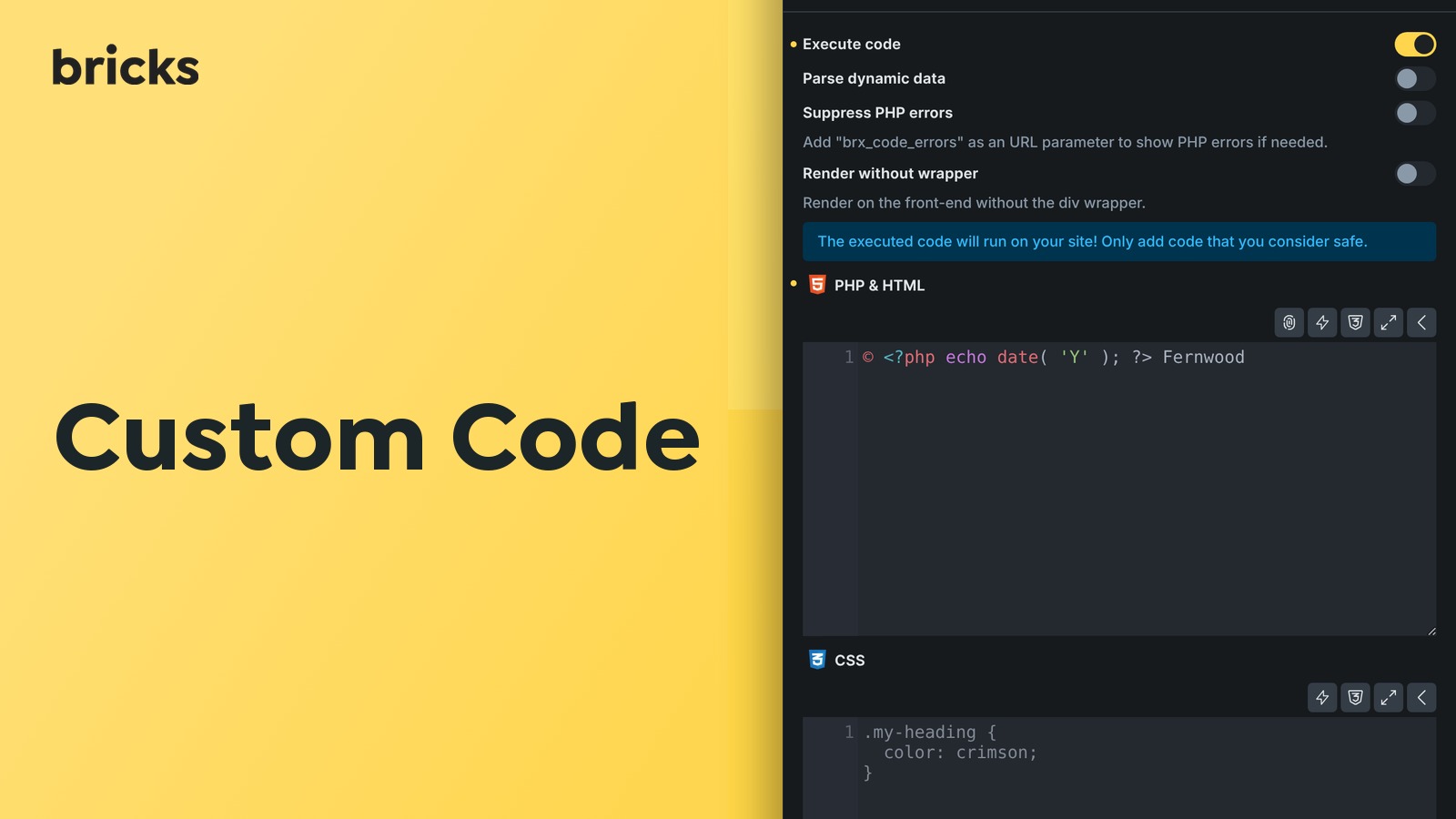
Where custom code can be added
Section titled “Where custom code can be added”Bricks has several custom-code locations. Choose the smallest location that matches what you need:
- Global CSS and scripts: Use this for code that should load across the entire site.
- Page-specific CSS and scripts: Use this for code that should load only on one page or template.
- Element-specific CSS: Use this for CSS tied to one element or global class.
- Code element: Use this when you need to place PHP/HTML, CSS, or JavaScript at a specific point in the page output.
Executable PHP and SVG code are security-sensitive. They only run when code execution is enabled, the current user has code execution capability, and the saved code has a valid code signature.
Global CSS and JavaScript
Section titled “Global CSS and JavaScript”You can add global Custom CSS and Custom JavaScript under Bricks > Settings > Custom code.
Global Custom CSS is added at the end of the document <head>.
Custom scripts can be added in three document locations:
- Header scripts: Added right before the closing
</head>tag. - Body (header) scripts: Added right after the opening
<body>tag. - Body (footer) scripts: Added right before the closing
</body>tag.
Wrap JavaScript entered in the global script fields in <script> tags. These fields are intended for items such as analytics snippets, third-party embeds, and other site-wide scripts.
Page-Specific CSS and JavaScript
Section titled “Page-Specific CSS and JavaScript”To apply custom CSS and JavaScript to a specific page or template, edit it with Bricks and open Settings > Page Settings > Custom Code. Code entered there is scoped to the page or template you are editing instead of the entire site.
Element-Specific Custom CSS
Section titled “Element-Specific Custom CSS”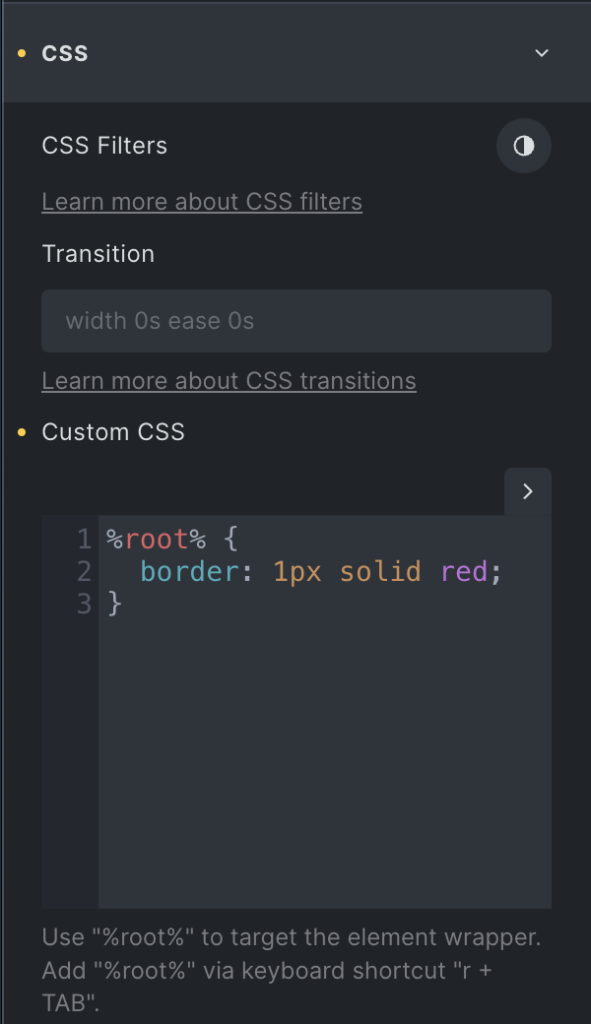
Extend the styles of any element and global class by adding your own custom CSS to it.
First, select the element you want to style. Then open the Style tab and expand the CSS control group.
Use the %root% placeholder to target the element or global class you are currently editing. Bricks automatically converts %root% to the element ID or global class selector.
Keyboard shortcut to insert %root%: type r and press TAB.
Example:
%root% { border: 1px solid red;}CSS code completion via Emmet
Section titled “CSS code completion via Emmet”You can use CSS abbreviations to write your CSS faster. Instead of writing margin: 10px, type m10 and press TAB.
https://docs.emmet.io/css-abbreviations/
Bi-directional CSS Sync
Section titled “Bi-directional CSS Sync”Introduced in Bricks 2.4, Bi-directional CSS Sync keeps an element’s or global class’s Custom CSS synchronized with the corresponding Bricks style controls.
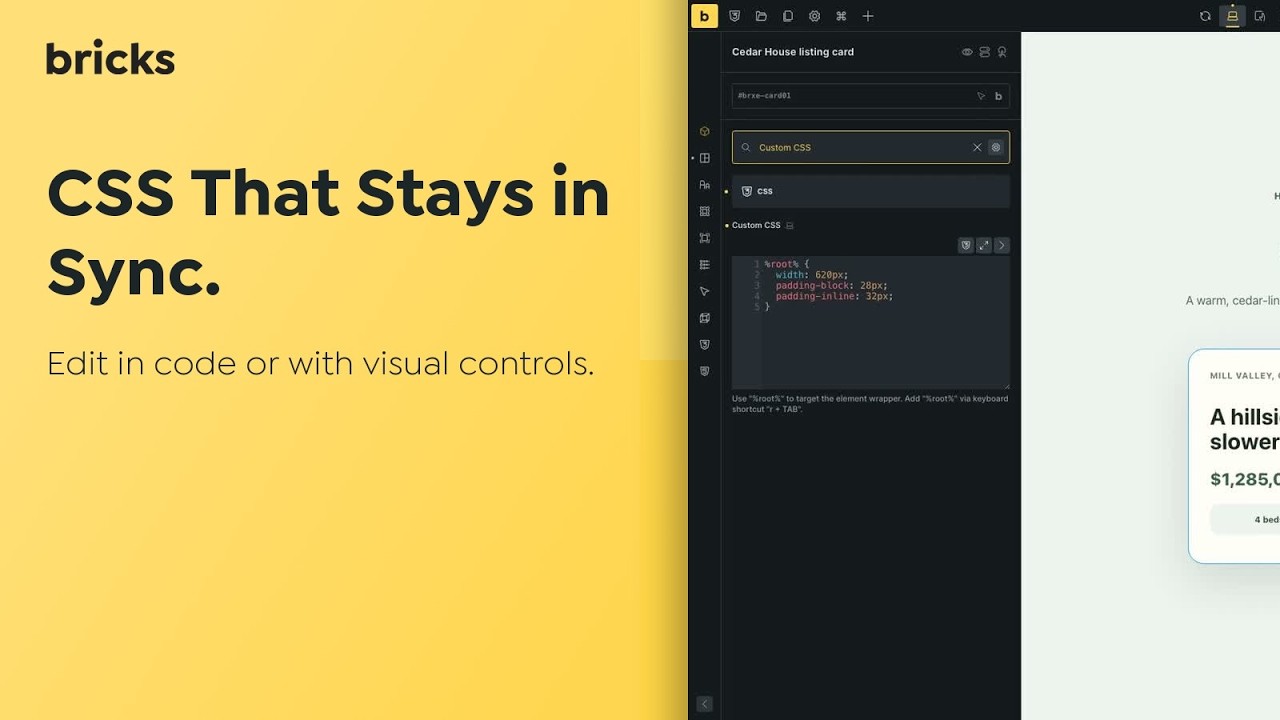
Enable this experimental feature under Bricks > Settings > Builder > CSS Sync.
Change a supported property in the CSS editor, and its corresponding style control updates automatically. Changes made through a style control are written back to Custom CSS. Unrelated or unsupported CSS remains untouched.
CSS Sync respects the active breakpoint and pseudo-class. If the same property is defined in Custom CSS and a style control, Custom CSS takes precedence in the builder and on the frontend.
Code Element (PHP, HTML, CSS, JS)
Section titled “Code Element (PHP, HTML, CSS, JS)”The Code element lets you place PHP/HTML, CSS, and JavaScript at a specific location in the page output.
By default, code entered in the Code element is displayed as a formatted code snippet. To execute PHP/HTML output instead, enable the element’s Execute code setting.
The Code element has separate editors for:
- PHP and HTML: Can be rendered as a code snippet or executed when Execute code is enabled.
- CSS: Automatically wrapped in
<style>tags when executed, unless you already include style tags. - JavaScript: Automatically wrapped in
<script>tags when executed, unless you already include script tags.
Enable code execution
Section titled “Enable code execution”To execute Code element PHP/HTML, first enable Code execution under Bricks > Settings > Custom code.
Code execution has two layers:
- The global Enable code execution setting must be enabled.
- The user must have the Bricks Execute code capability, either through their role or an individual user-profile override.
If code execution is disabled, or if your user does not have the capability, Bricks does not show the executable controls and displays a “Code execution not allowed” notice.
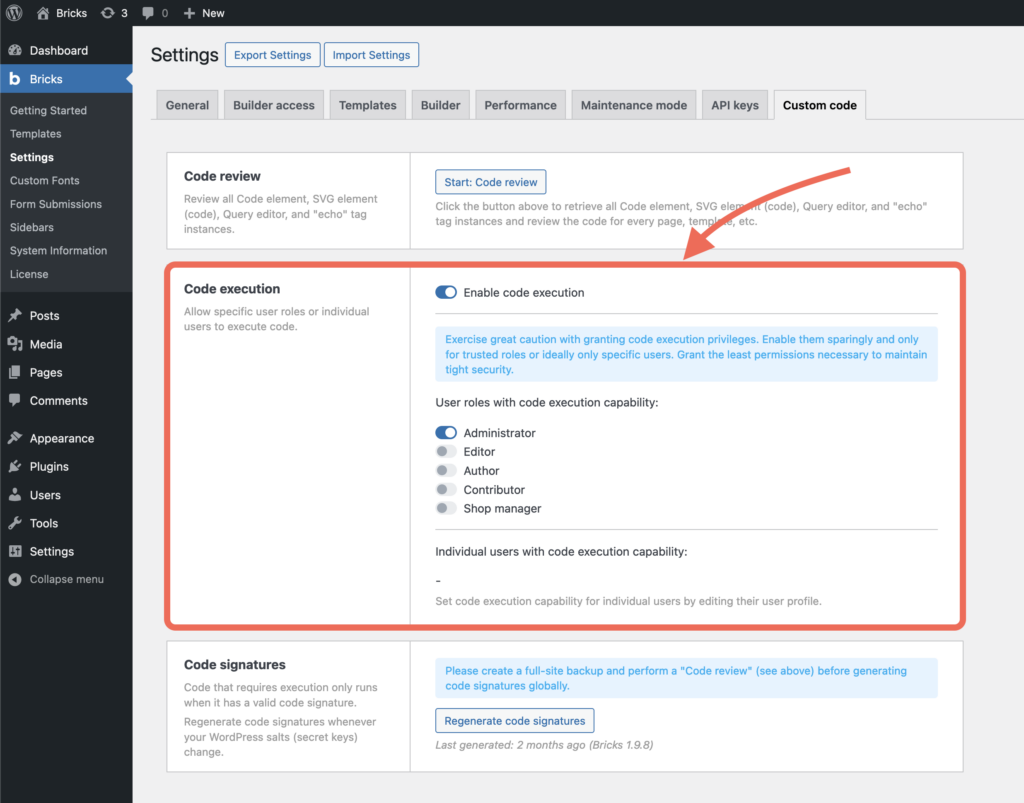
Code execution enabled for the Administrator role
Make sure to only enable code execution for users and roles you trust.
Code execution can also be disabled by code using the bricks/code/disable_execution filter. Older sites may still use the deprecated bricks/code/allow_execution filter set to false; that also disables execution.
Code signatures
Section titled “Code signatures”Executable code only runs when code execution is enabled and the saved code has a valid code signature. Regenerate code signatures whenever your WordPress salts or secret keys change.
Code signatures apply to executable Bricks code such as Code element PHP/HTML, SVG element source code, Query editor code, component query properties, and global query records. Changing signed code invalidates the old signature until the code is signed again.
See Code signatures for signing workflows, global regeneration, and the dangerous automatic signing constants.
How to add PHP and HTML code to your element
Section titled “How to add PHP and HTML code to your element”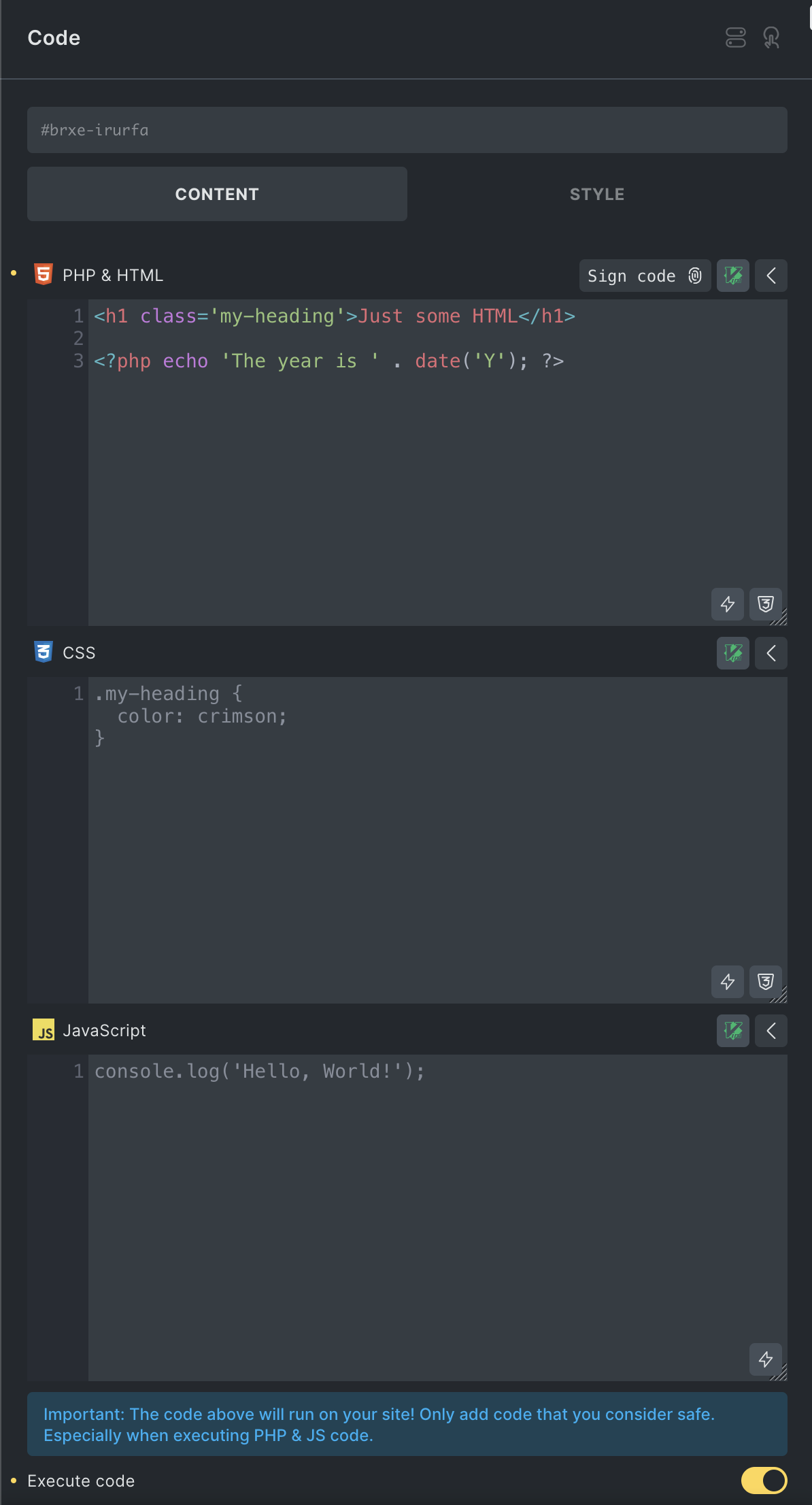
Code Element: Executing HTML and PHP code
- Add a Code element to the canvas.
- Enter PHP/HTML in the PHP and HTML editor.
- Enable Execute code.
- Review the code.
- Click the Sign code icon at the top-right of the code editor, or use
CMD/CTRL + R. - Save the page.
When Execute code is enabled, Bricks verifies the code signature before running the PHP/HTML. If the signature is missing or invalid, Bricks renders an error placeholder instead of executing the code.
The Code element also has optional execution settings:
- Parse dynamic data: Parses Bricks dynamic data inside the executable PHP/HTML.
- Suppress PHP errors: Hides PHP errors unless the URL includes
brx_code_errors. - Render without wrapper: Outputs the executed result without the Code element wrapper on the frontend.
Security checklist
Section titled “Security checklist”Before enabling or signing executable code:
- Grant code execution to the fewest trusted users possible.
- Prefer page-specific or element-specific CSS/JS when PHP is not needed.
- Review the code before signing it.
- Re-sign code after editing it.
- Regenerate signatures after changing WordPress salts.
- Run a Code review before global signature regeneration.
HTML Code Completion via Emmet
Section titled “HTML Code Completion via Emmet”You can use abbreviations to generate your HTML structures much faster via a familiar CSS-based syntax.
Abbreviation: #header (+ TAB key)
Generates:
<div id="header"></div>Abbreviation: h$[title=item$]{Header $}*3
Generates:
<h1 title="item1">Header 1</h1><h2 title="item2">Header 2</h2><h3 title="item3">Header 3</h3>Was this helpful?
A quick vote and short notes help us improve these docs faster.
Leave a note for us
Please do not include passwords, license keys, or personal data. We store submitted notes to improve the docs.
Thanks for sharing feedback. We're using it to improve these docs.