
Popup Builder
The Popup Builder lets you create fully custom popups in Bricks. A popup is a Bricks template with the template type Popup. Bricks renders the popup HTML on the front end, keeps it hidden by default, and opens or closes it through Interactions or JavaScript.
Use popups for modals, newsletter forms, exit-intent offers, quick views, map info boxes, and contextual content in query loops.
Create a popup template
Section titled “Create a popup template”Create a new template and choose the Popup template type.
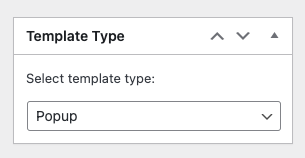
Save the template, then edit it with Bricks.
Popup templates look different from normal page templates:
- The popup content is centered on the canvas.
- Template Settings includes a Popup group.
- The template does not use Populated Content.
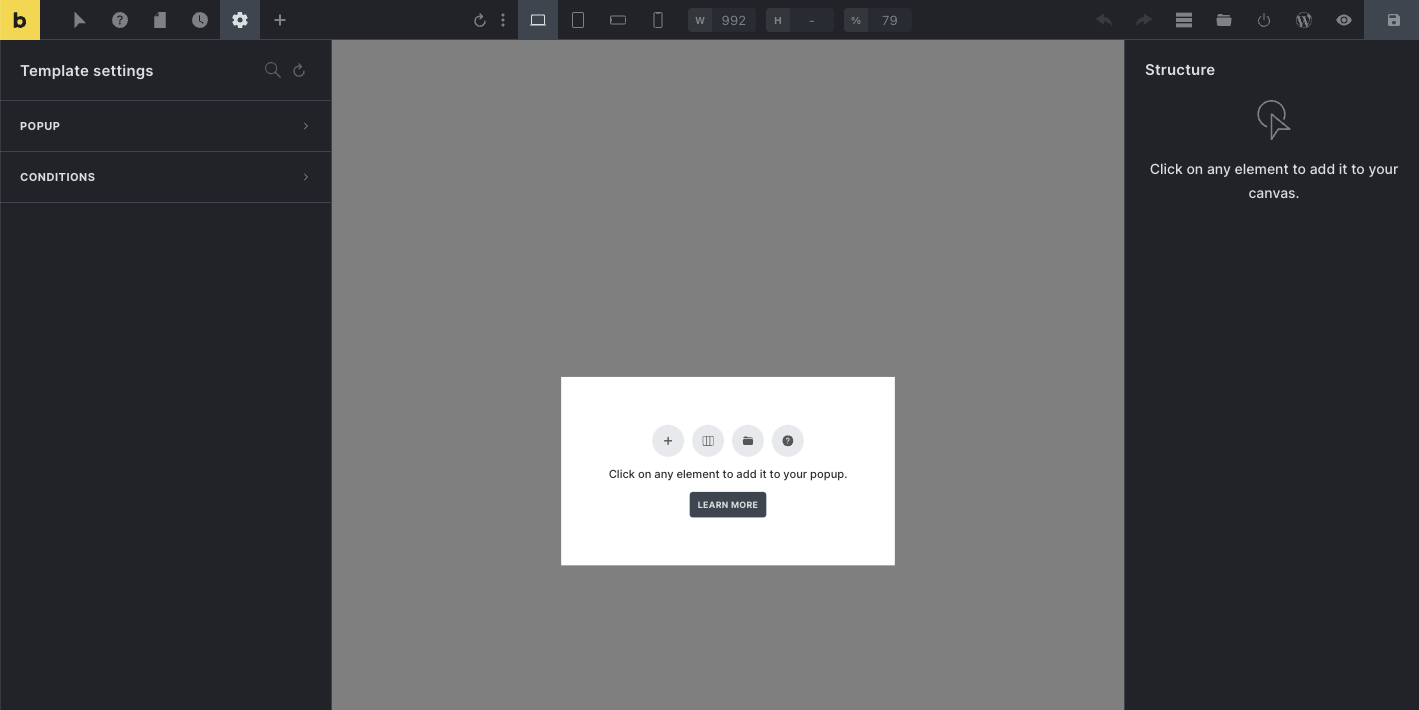
Build the popup body like any other Bricks layout: add sections, containers, forms, buttons, icons, images, or dynamic data to the canvas.
Popup availability and template conditions
Section titled “Popup availability and template conditions”Template conditions decide where Bricks renders a popup template. Open Settings > Template Settings > Conditions and choose the pages where the popup should be available.
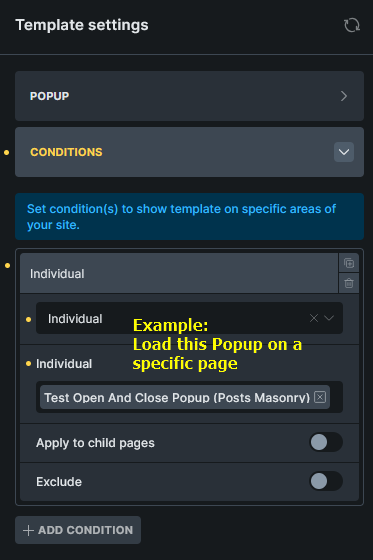
For example, a newsletter popup that can open from the global footer usually needs a condition such as Entire website. A product quick-view popup may only need to be available on shop or product archive pages.
If a popup is not rendered on the current page, an interaction cannot open it because there is no popup element in the DOM. If a page has Disable popups enabled in Page Settings, Bricks does not render page popups.
You can render multiple popup templates on the same page.
Popup settings
Section titled “Popup settings”Popup-specific settings are under Settings > Template Settings > Popup.
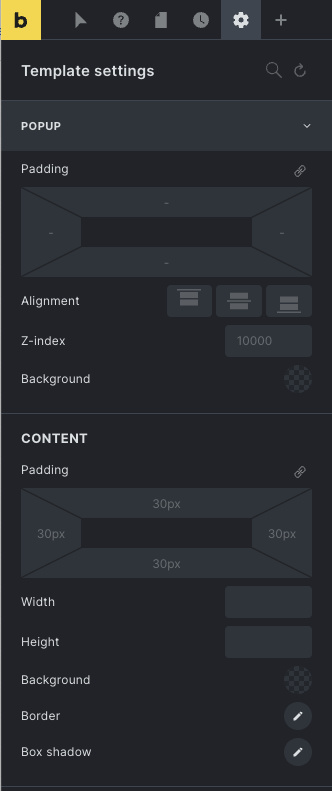
You can also define global popup defaults in Theme Styles under the Popup control group. Template settings can override those defaults for one popup.
The main popup settings include:
- Padding: padding on the popup wrapper.
- Align main axis and Align cross axis: position the popup content inside the viewport.
- Close on: choose Backdrop click, ESC key, None, or the default Backdrop and ESC behavior.
- Z-index: controls popup stacking.
- Scroll (body): allow the page body to scroll while the popup is open. If disabled, Bricks adds
no-scrollto the body while the popup is open. - Scroll to top: scroll popup content to the top when opening.
- Disable auto focus: prevent Bricks from focusing the first focusable element inside the popup.
- Fetch content via AJAX: render popup content on demand instead of in the initial DOM.
- AJAX loader: choose a loader animation and optional selector, color, and scale for AJAX popups.
- Breakpoints: choose where the popup is allowed to display.
- Backdrop: configure or disable the backdrop.
- Content: style the
.brx-popup-contentwrapper. - Popup limit: restrict how often the popup can open.
On the front end, Bricks traps keyboard focus inside open popups, restores focus after closing, supports ESC/backdrop closing according to the Close on setting, and emits popup JavaScript events.
Popup interactions
Section titled “Popup interactions”Further down the popup settings panel, the Interactions group lets the popup react to events. Popup template interactions use the same interaction system as elements, plus two popup-specific triggers:
- Show popup: runs after this popup opens.
- Hide popup: runs after this popup closes.
Use these triggers when the popup itself should run follow-up actions, such as starting an animation, setting storage, or updating another element after the popup has opened or closed.
Most popups are opened by an interaction on another element. For example, add a Click interaction to a Button, set Target to Popup, select the popup template, and use Show element.
A common automatic popup uses Content loaded:
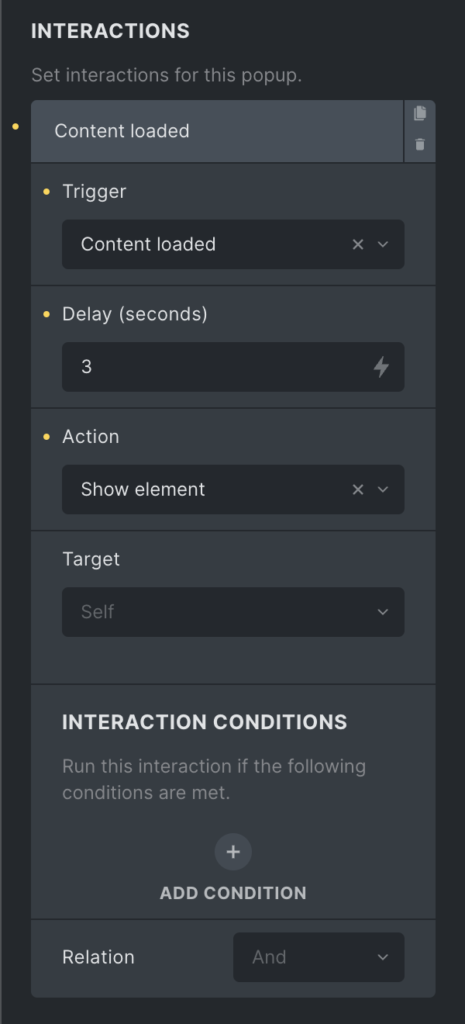
If no popup interaction exists on the popup itself and no other element interaction opens the popup, the popup stays hidden.
Popup open and close lifecycle
Section titled “Popup open and close lifecycle”When Bricks opens a popup, it follows this front-end flow:
- Resolve the popup element by template ID or element node.
- Check popup limits.
- Check popup breakpoint rules.
- Remove the
hideclass. - Add
no-scrollto the body unless body scroll is allowed. - Fetch AJAX popup content if the popup is configured for AJAX.
- Insert AJAX content into
.brx-popup-content, if content was fetched. - Emit
bricks/ajax/popup/loaded, only for AJAX content that was inserted. - Emit
bricks/popup/open. - Increment the popup counters.
When Bricks closes a popup, it adds the hide class, removes no-scroll from the body if no other non-body-scroll popup is open, and emits bricks/popup/close.
This lifecycle matters for custom code:
- Listen to
bricks/ajax/popup/loadedwhen you need newly fetched AJAX popup DOM to exist. - Listen to
bricks/popup/openwhen you need the popup to be open. - Listen to
bricks/popup/closewhen you need cleanup after close.
Popup limit
Section titled “Popup limit”By default, a popup can open every time it is triggered. Use Settings > Template Settings > Popup > Popup limit to restrict how often it opens.
Bricks checks limits before opening the popup. Once a limit is reached, the popup does not open and the open event is not emitted.
There are four popup limit controls:
| Limit type | Browser storage | Description |
|---|---|---|
| Per page load | window.brx_popup_{id}_total | Resets after the page reloads. |
| Per session | sessionStorage.brx_popup_{id}_total | Resets when the browser session/tab storage is cleared. |
| Across sessions | localStorage.brx_popup_{id}_total | Persists until local storage is cleared. |
| Show again after hours | localStorage.brx_popup_{id}_lastShown | Stores the last shown timestamp and waits the configured number of hours before allowing another open. |
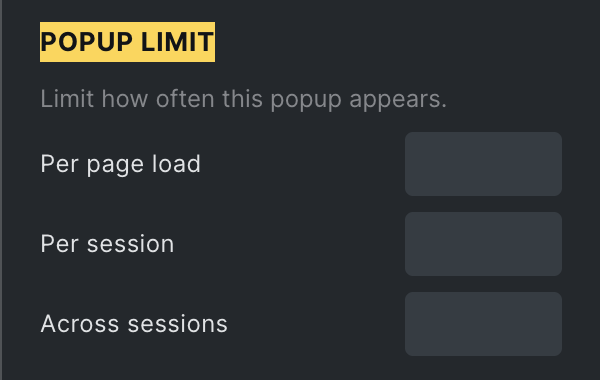
The page-load, session, and across-session counters increment each time the popup is successfully opened. The hour-based setting stores the last shown timestamp when the popup passes its limit check.
Popup breakpoints
Section titled “Popup breakpoints”Popup breakpoint settings control whether a popup is allowed to display at the current viewport width.
Bricks supports two modes:
- Start display at breakpoint: show the popup at or above the selected breakpoint width.
- Display on breakpoints: show the popup only inside the selected breakpoint ranges.
If the current viewport does not match the popup breakpoint rule, Bricks does not open the popup.
Closing a popup
Section titled “Closing a popup”You can close a popup in several ways:
- Use the popup Close on setting for backdrop click and/or ESC.
- Add a close icon or button inside the popup and give it a Hide element interaction targeting the popup.
- Use a reusable close element that targets
.brx-popup. - Call
bricksClosePopup()from JavaScript.
Example: Add popup close icon
Section titled “Example: Add popup close icon”Add an Icon element to your popup. Set its cursor to pointer under Styles > Layout > Misc.
Open the Icon element’s Interactions panel and add:
- Trigger: Click
- Target: Popup
- Popup: the current popup
- Action: Hide element
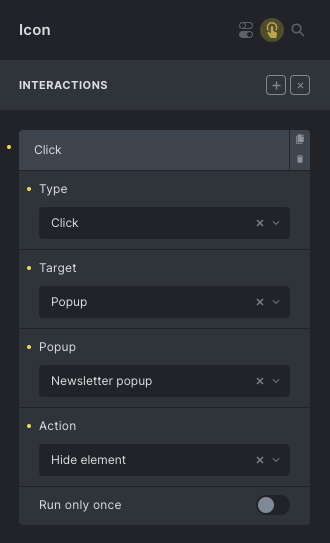
If you want to reuse the same close icon in different popups, create it as a Component. Then use:
- Target: CSS selector
- CSS selector:
.brx-popup - Action: Hide element
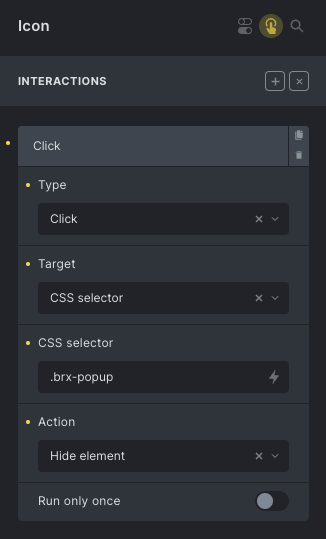
JavaScript helper functions and events
Section titled “JavaScript helper functions and events”Bricks exposes popup helper functions and custom events on the front end.
Open or close a popup via JavaScript
Section titled “Open or close a popup via JavaScript”Use bricksOpenPopup and bricksClosePopup to open or close Bricks popups.
Both functions accept a popup template ID or a popup element node:
bricksOpenPopup(3321)bricksClosePopup(3321)const popup = document.querySelector('.brx-popup[data-popup-id="3321"]')
bricksOpenPopup(popup)bricksClosePopup(popup)Example: Open popup by selector
Section titled “Example: Open popup by selector”document.querySelectorAll('.brxe-heading, .my-custom-selector').forEach((el) => { el.addEventListener('click', () => { bricksOpenPopup(3321) })})Listen to popup open or close events
Section titled “Listen to popup open or close events”Use bricks/popup/open and bricks/popup/close to run code when a popup opens or closes.
document.addEventListener('bricks/popup/open', (event) => {  const popupId = event.detail.popupId  const popupElement = event.detail.popupElement
  if (popupId == 3321) {    console.log('3321 popup is opened')  }})
document.addEventListener('bricks/popup/close', (event) => {  const popupId = event.detail.popupId  const popupElement = event.detail.popupElement
  if (popupId == 3321) {    console.log('3321 popup is closed')  }})
Use event.detail.popupId and event.detail.popupElement. The property is detail, not details.
Popup inside query loop
Section titled “Popup inside query loop”You can add a popup inside a query loop with the Template element. Inside the popup template, dynamic data can reference the current loop item.
The example below shows a Quick View button inside a product query loop. The button uses an interaction to show the selected Quick View popup.
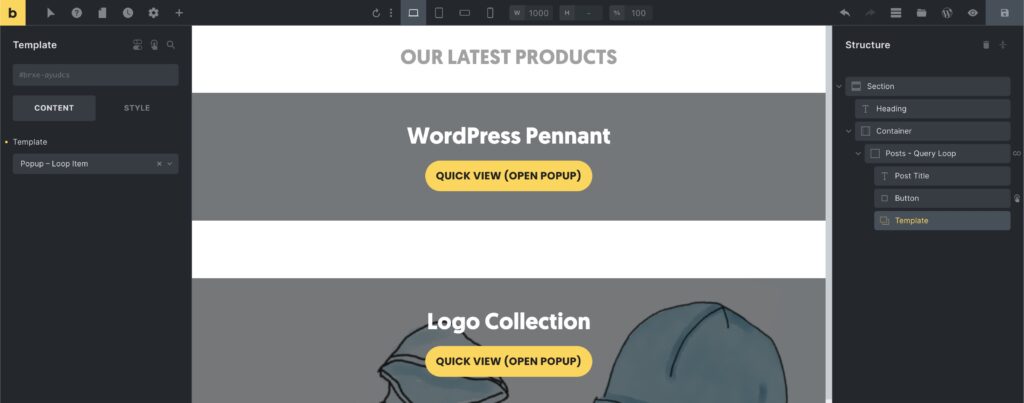
For Bricks 1.7.1 and newer, Bricks can build loop-specific popup HTML for query loop popups. For older versions, do not set the interaction on the Query Loop div itself; set it on an element inside the loop item.
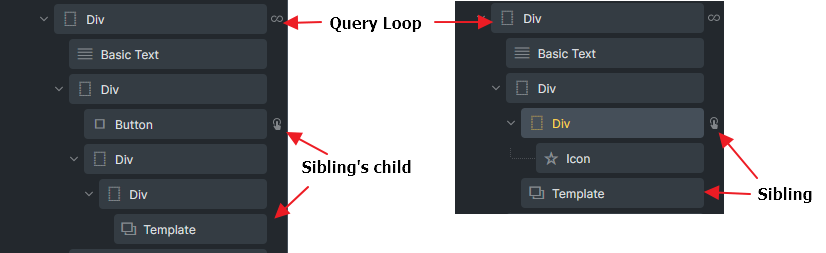
Example layout structure to trigger a looping popup for Bricks versions earlier than 1.7.1
Example: Open a looping popup by query element ID and loop index
Section titled “Example: Open a looping popup by query element ID and loop index”If a looping popup is already rendered on the page, you can target it by its query element ID and loop index:
document.addEventListener('DOMContentLoaded', () => {  setTimeout(() => {    const queryId = 'vfiqrn'    const targetPopup = document.querySelector(      `.brx-popup[data-popup-loop="${queryId}"][data-popup-loop-index="7"]`    )
    bricksOpenPopup(targetPopup)  }, 200)})
The small delay is useful in custom code elements because it gives Bricks frontend globals and popup markup time to initialize.
AJAX popup
Section titled “AJAX popup”AJAX popups were introduced in Bricks 1.9.4. Enable Fetch content via AJAX when you want Bricks to keep the initial DOM lighter and fetch popup content only when the popup opens.
This is especially useful for popups inside query loops, where rendering every popup’s full content on initial page load can be expensive.
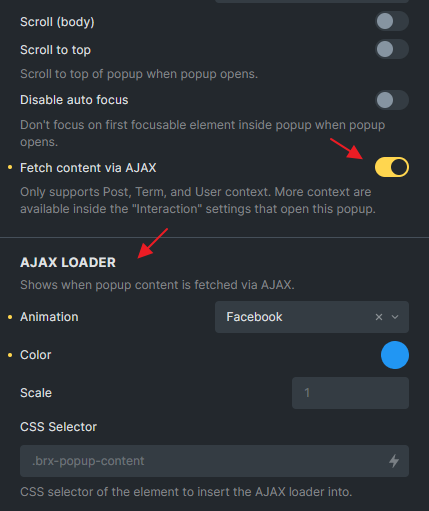
When AJAX is enabled:
- The popup wrapper is rendered on the page.
.brx-popup-contentstarts empty outside the builder preview.- Bricks fetches the content from the REST endpoint when the popup opens.
- Returned HTML and dynamic CSS are inserted into
.brx-popup-content. - Additional nested popup HTML can be appended to the body if the AJAX content contains looping AJAX popups.
AJAX popup rendering supports post, term, and user context. Dynamic data that does not have a stable object ID, such as some repeater rows, cannot always be resolved as an AJAX popup context.
AJAX popup context settings
Section titled “AJAX popup context settings”When an interaction opens a popup, Bricks exposes context controls for AJAX popups:
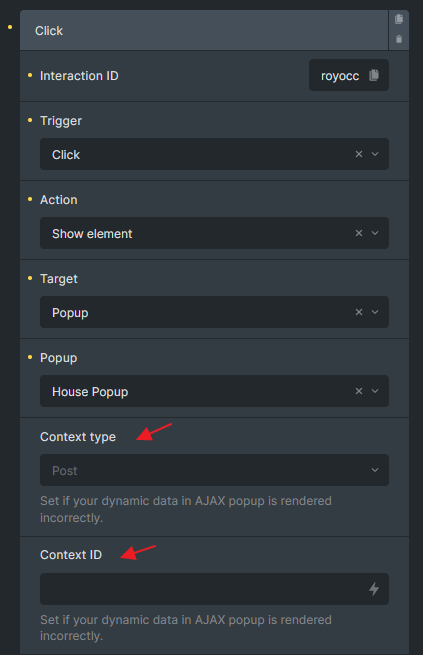
Bricks tries to infer the current context automatically. Inside normal post, term, and user loops, this often works. In nested query loops, component instances, custom field repeaters, or more complex dynamic data setups, automatic context can be wrong or unavailable.
Use these fields when dynamic data in the AJAX popup renders empty or from the wrong object:
- Context type: Post, Term, or User.
- Context ID: the object ID to render dynamic data against.
You can use dynamic data such as {post_id}, {term_id}, or a custom field value that resolves to a post, term, or user ID.
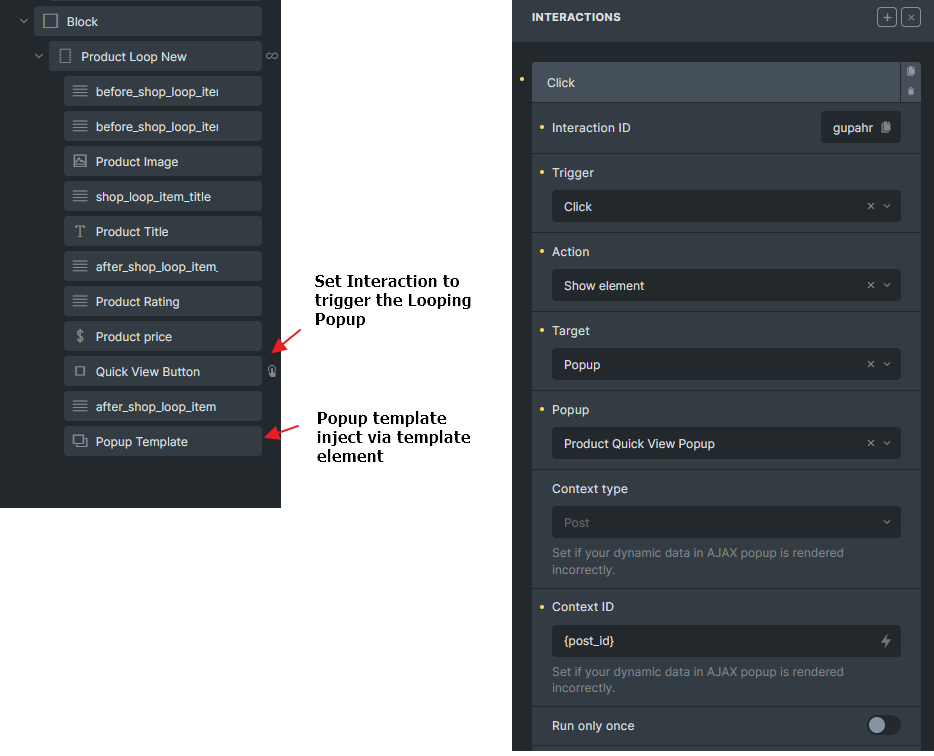
A looping product quick-view popup structure in Bricks
Open an AJAX popup with context in JavaScript
Section titled “Open an AJAX popup with context in JavaScript”Since Bricks 1.9.4, bricksOpenPopup accepts three parameters:
object: popup ID or popup element node.timeout: timeout in milliseconds used by popup animation/counter logic.additionalParams: AJAX popup context data.
bricksOpenPopup(  1190,  0,  {    popupContextId: 668,    popupContextType: 'post'  })
bricksOpenPopup(  2350,  0,  {    popupContextId: 39,    popupContextType: 'term'  })
For users, the Interactions panel usually handles these parameters. Use JavaScript when you are opening popups from custom scripts.
AJAX popup events
Section titled “AJAX popup events”AJAX popups emit three AJAX-specific events:
bricks/ajax/popup/start: emitted before the AJAX popup request is made.bricks/ajax/popup/end: emitted after the AJAX popup request finishes.bricks/ajax/popup/loaded: emitted after fetched popup content is inserted into the DOM.
Each event uses event.detail.popupId and event.detail.popupElement.
document.addEventListener('bricks/ajax/popup/loaded', (event) => {  const popupId = event.detail.popupId  const popupElement = event.detail.popupElement
  if (popupId == 3321) {    console.log('3321 AJAX popup content DOM loaded')  }})
The AJAX popup open sequence is:
bricks/ajax/popup/startbricks/ajax/popup/endbricks/ajax/popup/loadedbricks/popup/open
bricks/ajax/popup/loaded only fires when AJAX content is inserted. Non-AJAX popups emit bricks/popup/open directly after opening.
Popup setup examples
Section titled “Popup setup examples”Example: Show popup when the mouse leaves the browser window
Section titled “Example: Show popup when the mouse leaves the browser window”After creating the popup template and layout, open Settings > Template Settings > Popup, scroll to Interactions, and add a Mouse leave window interaction that shows the popup.
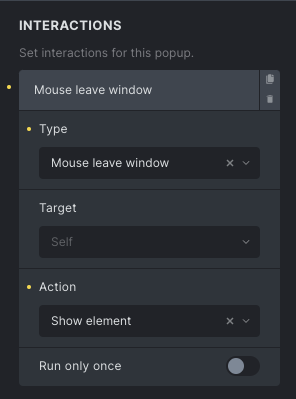
For a real exit-intent popup, combine this with popup limits or browser storage conditions so the popup does not appear too often.
Example: Show popup before a date/time
Section titled “Example: Show popup before a date/time”Template conditions decide where the popup template is available. Element Conditions can decide whether the popup content renders.
To show a popup only before a specific date, add an Element Condition to the outermost popup element.
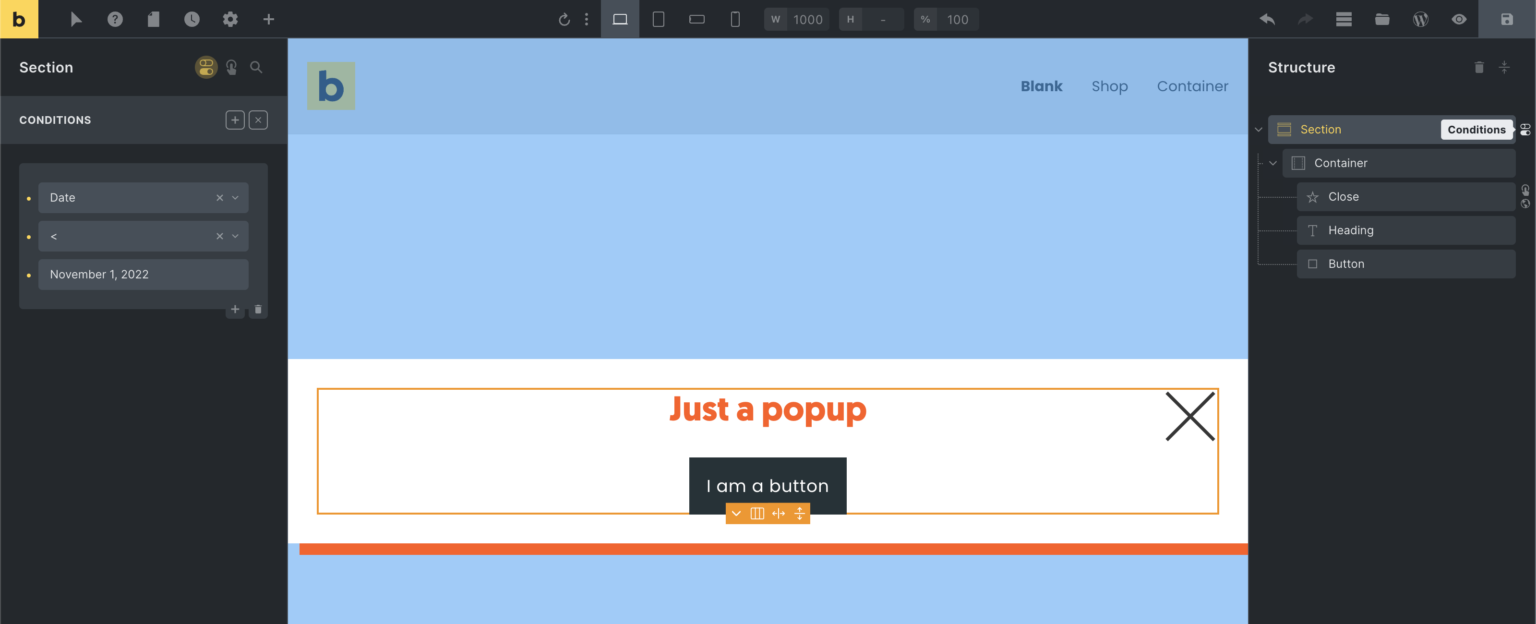
If that condition is not fulfilled, Bricks does not render the popup content and skips the popup HTML. A trigger that targets that popup has no popup element to open on the page.
Example: Use popup open/close as triggers
Section titled “Example: Use popup open/close as triggers”Popup template interactions can react after the popup opens or closes.
For example:
- Open Settings > Template Settings > Popup > Interactions.
- Add a Show popup trigger.
- Set the action to Browser storage: Count.
- Store a key such as
newsletter_popup_opened.
You can then use interaction conditions elsewhere to check that key and adjust page behavior.
Was this helpful?
A quick vote and short notes help us improve these docs faster.
Leave a note for us
Please do not include passwords, license keys, or personal data. We store submitted notes to improve the docs.
Thanks for sharing feedback. We're using it to improve these docs.