
How to get your Instagram Access Token
To use the Instagram Feed element (@since 1.9.1), you need an access token. This token allows secure retrieval of your Instagram account data. This guide explains how to get the token using the Instagram API with Instagram Login.
Before you can publish your app and generate an access token, you must connect your app to a Business that has completed Business Verification. Follow Meta’s Business Verification guide for instructions.
Step 1: Ensure you have an Instagram Creator or Business account
Section titled “Step 1: Ensure you have an Instagram Creator or Business account”Before proceeding, make sure your Instagram account is either a Creator or Business account.
-
Log in to your Instagram account.
-
Convert your account by following these instructions:
Step 2: Set up an application
Section titled “Step 2: Set up an application”You first have to set up an application on the Meta for Developers platform by following these steps:
-
Access your Meta for Developers platform. You can use an existing account or create a new one.
-
Provide an App Name and Contact Email.
-
Click Create App, then:
-
Under Add use cases, select Manage messaging & content on Instagram (from the Content management category), then click Next.
-
When prompted, you may connect a Business account now or skip and do it later.
-
-
Click Next and then Go to dashboard to complete the setup.
You will be redirected to the app dashboard for your new app with products you can add to your app.
Step 3: Add the Instagram product to your app
Section titled “Step 3: Add the Instagram product to your app”-
On the app dashboard, scroll down to Products and locate Instagram.
-
Click Set Up next to Instagram.
-
Select API Setup with Instagram Login (NOT API Setup with Facebook Login).
Step 4: Generate your Instagram access token
Section titled “Step 4: Generate your Instagram access token”To retrieve an access token:
- Assign an Instagram account for token generation:
-
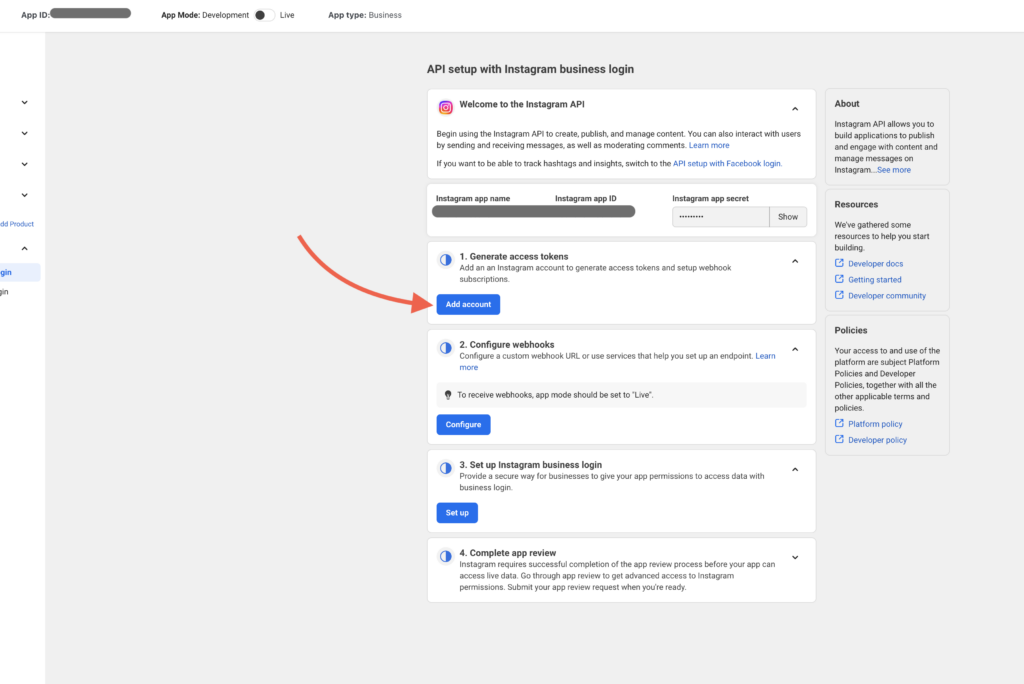
In the App Dashboard, go to Instagram > API Setup with Instagram Login.
-
Click Add an Instagram Account.
-
Log in with your Instagram Creator or Business account credentials.
-
-
Confirm the account connection:
-
Your Instagram account must be public.
-
If you manage multiple accounts, ensure the correct one is selected.
-
-
Copy the generated access token tied to the assigned Instagram account.
Step 5: Add the access token to Bricks
Section titled “Step 5: Add the access token to Bricks”To finalize the setup, navigate to Bricks settings > API keys from your WordPress dashboard and paste the access token into the Instagram Access Token input field, and save your changes.

For more information, refer to Meta’s official documentation: Create a Meta App for Instagram Platform.
Note: Once you retrieve and add the access token, Bricks will automatically refresh it every 20 days using the bricks_refresh_instagram_access_token CRON job. No manual updates are required.