
Theme Styles
Adjust the default styling of your site layout, elements, colors, links, typography, etc. throughout your site via Theme Styles for a consistent and easy-to-maintain design system for your entire site.
Access the Theme Styles by clicking the Settings (gear) icon in the builder toolbar. Then go to Theme Styles.
To create your own Theme Style, click the Create (plus) icon and provide a name.
Apply any styling changes you want in the control groups below (like setting your fonts under “Typography”, etc.).
Conditions
Section titled “Conditions”Open the Conditions control group to tell Bricks where on your site this theme style should be used.
To apply a theme style to your entire website open the Conditions control group, click Add Condition, and select Entire Website.
You can set as many theme style conditions as you want.
Let’s say you want to apply a Theme Style to two specific landing pages and your home page. You simply add a condition, click on Individual, and select your two landing pages. Then you add another condition and select Front page.
These are the available control groups:
-
CONDITIONS
-
GENERAL
-
COLORS
-
CONTENT
-
LINKS
-
TYPOGRAPHY
-
ELEMENT - SECTION
-
ELEMENT - CONTAINER
-
ELEMENT - BLOCK
-
ELEMENT - DIV
-
ELEMENT - ACCORDION
-
ELEMENT - ALERT
-
ELEMENT - BUTTON
-
ELEMENT - CAROUSEL
-
ELEMENT - CODE
-
ELEMENT - COUNTER
-
ELEMENT - DIVIDER
-
ELEMENT - FORM
-
ELEMENT - HEADING
-
ELEMENT - ICON BOX
-
ELEMENT - IMAGE
-
ELEMENT - IMAGE GALLERY
-
ELEMENT - LIST
-
ELEMENT - NAV MENU
-
ELEMENT - POST CONTENT
-
ELEMENT - META DATA
-
ELEMENT - POST NAVIGATION
-
ELEMENT - RELATED POSTS
-
ELEMENT - TAXONOMY
-
ELEMENT - POST TITLE
-
ELEMENT - PRICING TABLES
-
ELEMENT - PROGRESS BAR
-
ELEMENT - SEARCH
-
ELEMENT - SIDEBAR
-
ELEMENT - SLIDER
-
ELEMENT - ICON LIST
-
ELEMENT - SVG
-
ELEMENT - TABS
-
ELEMENT - TEAM MEMBERS
-
ELEMENT - TESTIMONIALS
-
ELEMENT - TEXT
-
ELEMENT - VIDEO
-
ELEMENT - WORDPRESS
-
WOOCOMMERCE - BUTTON
Exclude condition
Section titled “Exclude condition”Since Bricks 1.3.6 you’ll be able to set exclude conditions for any theme style. To exclude a specific condition you need to toggle the exclude control. Excluding a certain condition will let Bricks know that if the condition applies in a certain scenario, then that theme style won’t be used.
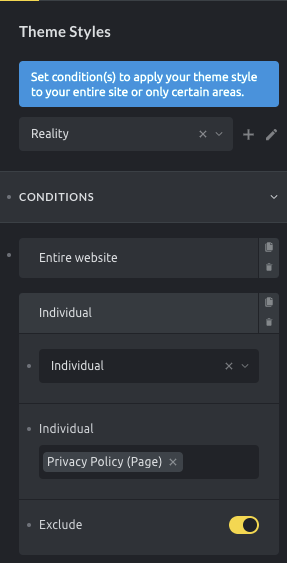
Use this theme style everywhere except for the Privacy Policy page
Export
Section titled “Export”-
Inside the builder go to
Settings > Theme styles -
Select the theme style you wish to export
-
Click the Edit (pencil) icon
-
Click the Export (download) icon
-
Download the generated JSON file to your computer
Import
Section titled “Import”-
Inside the builder go to
Settings > Theme styles -
Click the Create (plus) icon
-
Click the Import (upload) icon
-
Select the theme style JSON file from your computer, and upload it
If a theme style with the same name already exists in your installation, the import will fail. This is to prevent any theme styles with identical names.
Style Hierarchy
Section titled “Style Hierarchy”Bricks applies styles based on specificity:
-
Element settings override everything
-
Page settings override theme styles
-
Theme styles apply last unless overridden above
Loading Method
Section titled “Loading Method”By default, Bricks loads only the most specific theme style on a page.
For example, if one theme style targets the entire website and another targets a specific page, only the one with the more specific condition (the specific page) is applied.
You can change this behavior under WordPress Admin > Bricks > Settings > General > Theme Styles: Loading Method
Options:
-
Most specific (default): Loads only one theme style, the one with the most specific condition.
-
Load all matching theme styles: Loads all theme styles whose conditions match the page.
Use “Load all matching theme styles” if you want to stack styles, like a global typography style combined with a post-type-specific layout.