
Icon Manager
Bricks 2.0 introduces the Icon Manager, a new feature for uploading and managing your own custom SVG icon sets directly inside the builder. The Icon Manager makes it easy to create and maintain a consistent icon system across your site.
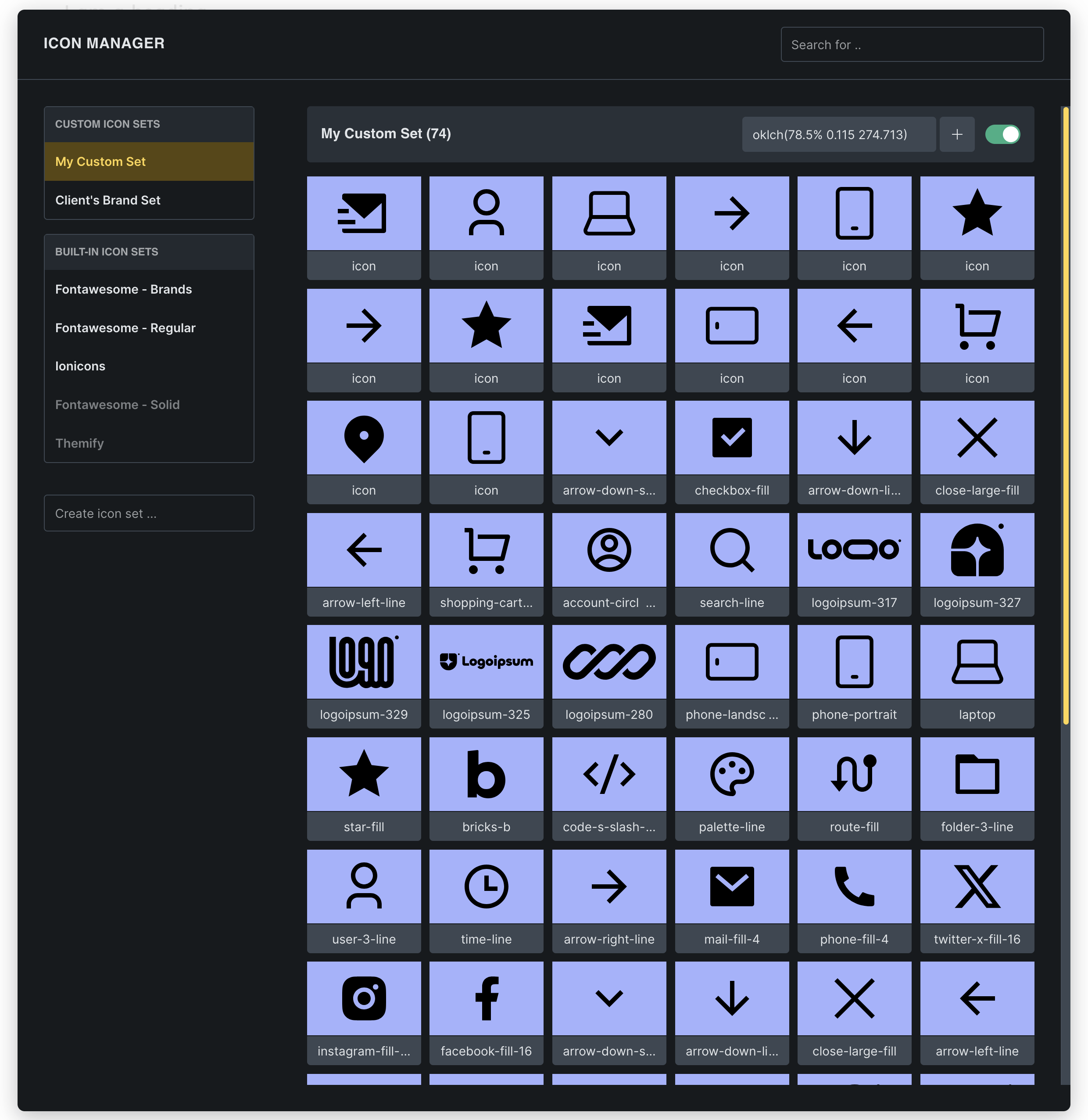
Accessing the Icon Manager
Section titled “Accessing the Icon Manager”To open the Icon Manager, go to Settings > Icon Manager in the builder toolbar, or click the gear icon within any icon control.
This opens a popup where you can manage both built-in and custom icon sets.
Core functionalities
Section titled “Core functionalities”Upload and manage custom icon sets
Section titled “Upload and manage custom icon sets”You can create your own icon sets by uploading a collection of SVG files. Each icon set is organized by name and can include as many icons as needed.
-
Create a new icon set by entering a new name in the “Create icon set” field and click save
-
Upload SVG files individually or in bulk from the WordPress media library
-
Each icon in the set becomes available in all icon controls
Enable or disable icon sets
Section titled “Enable or disable icon sets”To keep your icon selection streamlined, you can disable any icon set, including built-in ones (i.e. FontAwesome). Disabled sets won’t appear in the icon picker, but any icons already used on the page will still display and render as expected.